
Prerequisites:
Local Tender Project is created (with or without an RFP conducted).
➡ Learn how to create a project
Supplier details are available.
➡ Learn how to onboard suppliers and grant them eSourcing access
General Conditions (GC) documents
➡ View examples and drafts of GC documents
Step-by-Step Process
Step 1: Access the Project
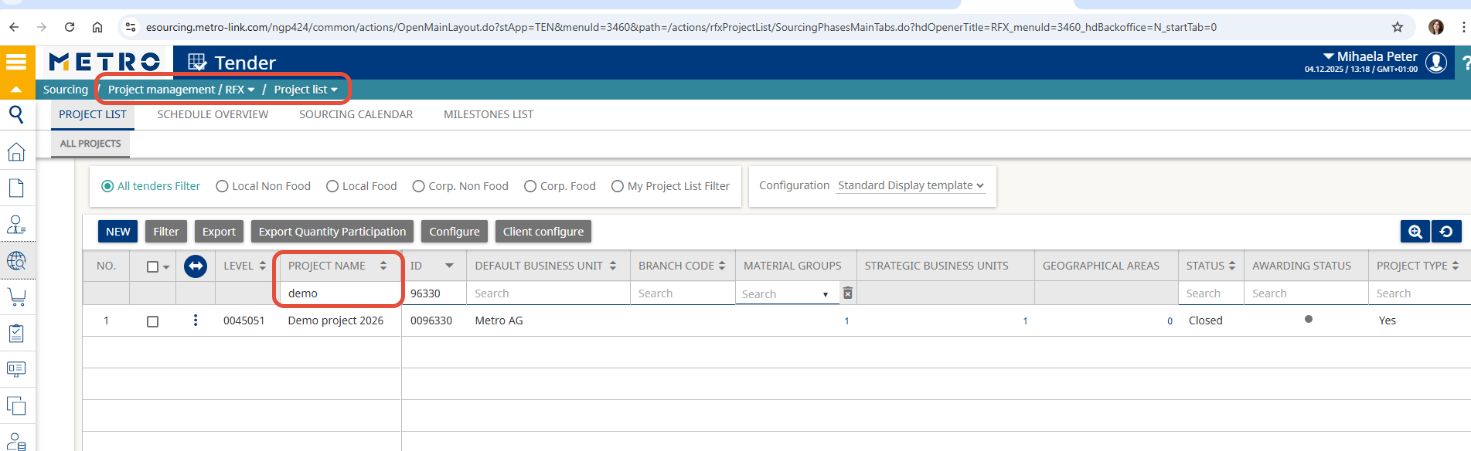
- Navigate to the Project management/RFX - Project List section in your eSourcing platform.
- search and click on it to open your Local Tender Project.
Step 2: Create the Auction
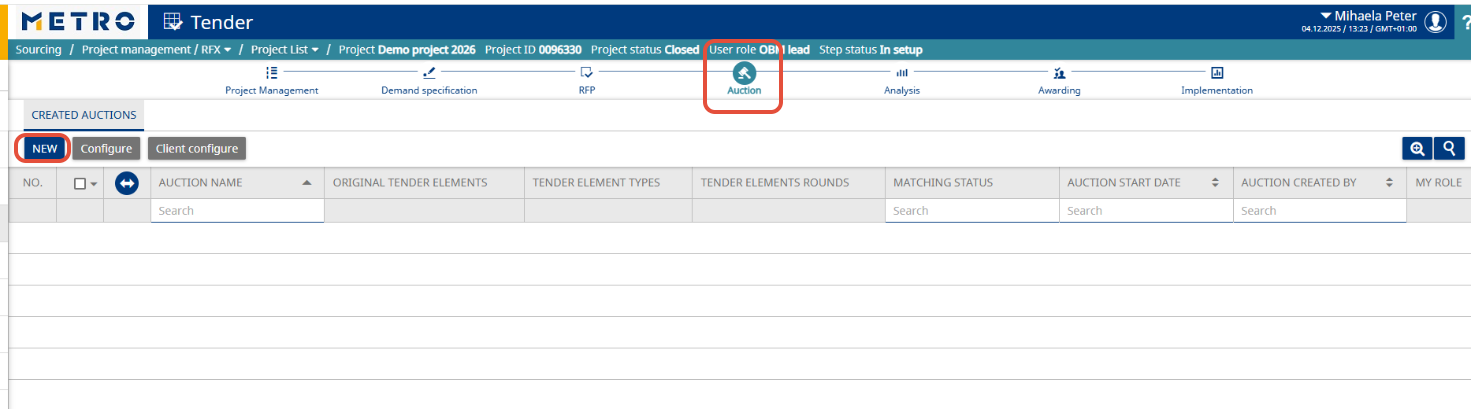
- Inside the Project, go to the Auction tab and click New.
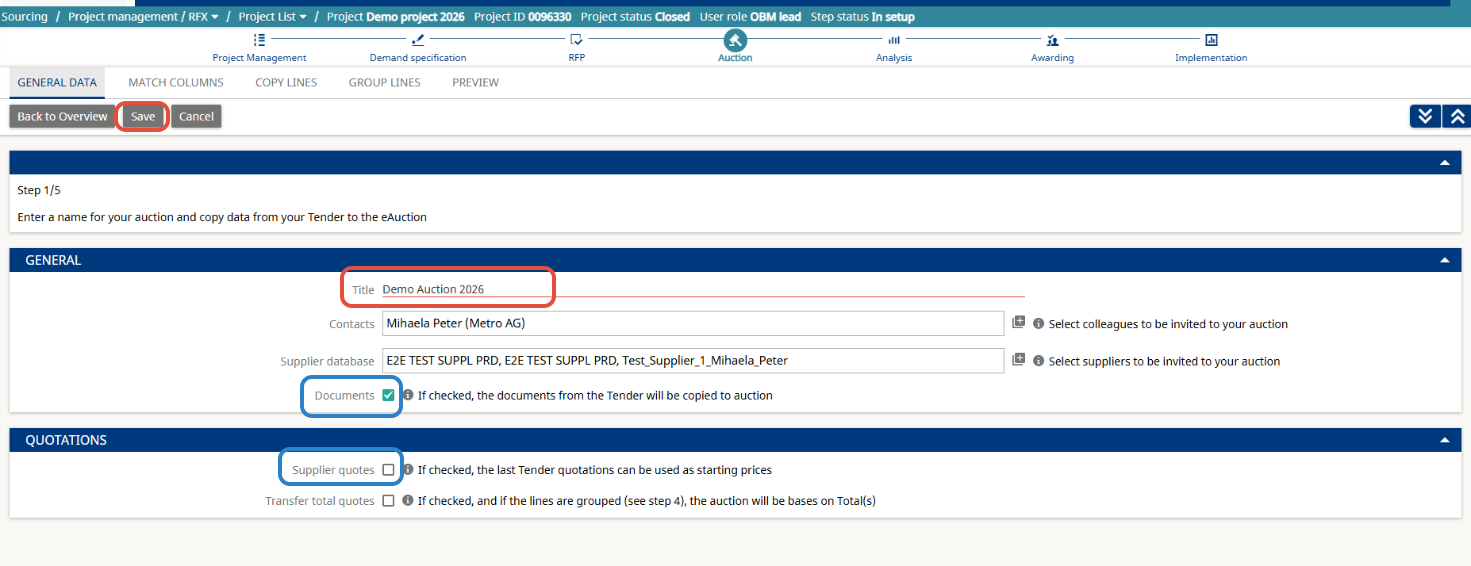
- Enter the Auction Name/Title.
- If you want to copy Documents and/or supplier quotes from the RFP, select the corresponding checkboxes.
- Click Save to apply the changes.
Step 3: Match Columns
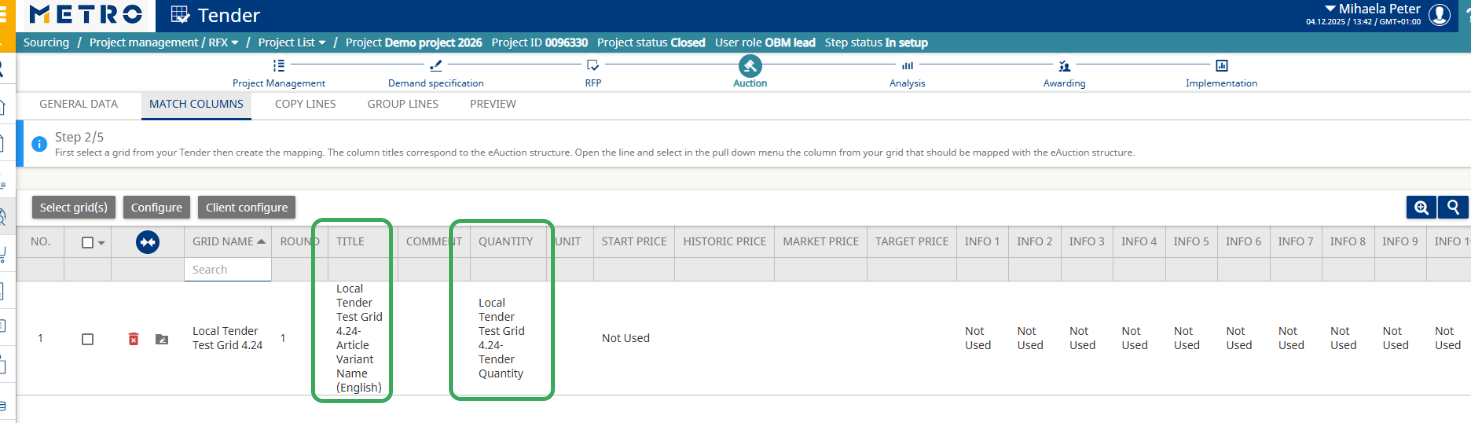
In this step, the Auction structure will be aligned with the Demand Specification or RFP Grid.
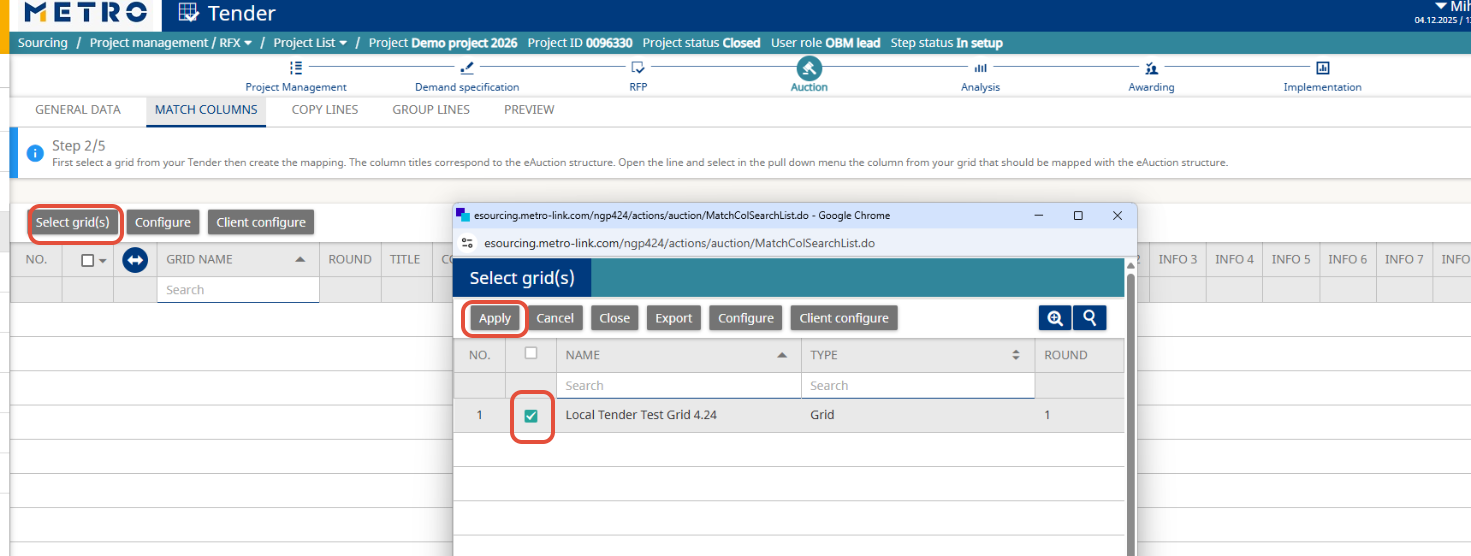
- Click Select grid(s).
- Select the checkbox under the grid you want to copy to the Auction.
- If you conducted an RFP (Request for Price), you will see both the Demand Specification and RFP grids.
- If no RFP was conducted, only the Demand Specification grid will be available.
- The purpose of this selection is to retrieve the article details. Ideally, both grids should contain the same article details, so either grid can be selected.
- Click Apply to confirm.
Note: The main and mandatory information—Product Name and Quantity—will be matched.
Step 4: Copy Lines
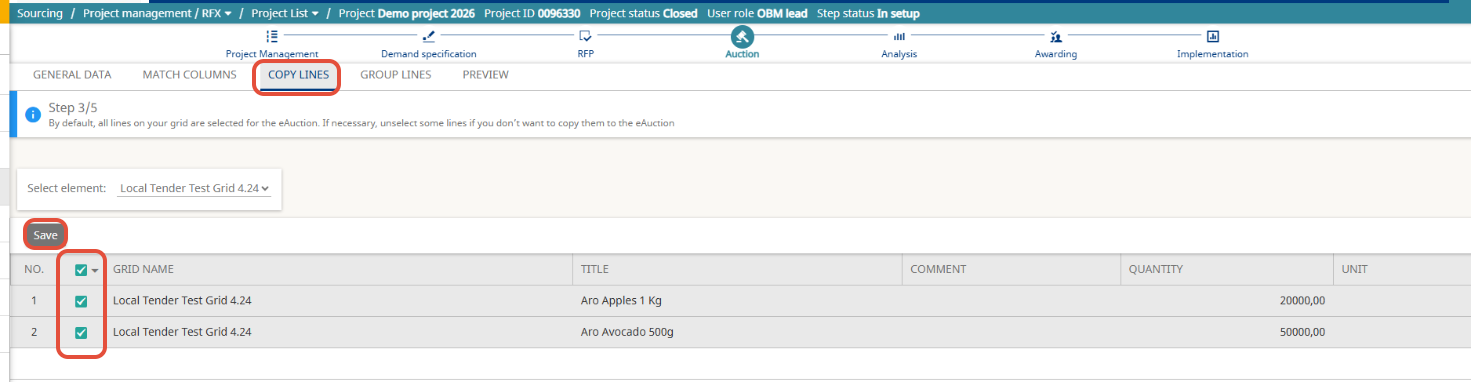
In this step, you will transfer articles from the selected grid (Demand Specification or RFP) into the Auction.
- You will see all articles from the selected grid displayed.
- By default, all articles are selected for transfer.
- If needed, you can deselect specific articles if you do not wish to negotiate all items in this Auction.
- Click Save to confirm and copy the selected lines into the Auction.
Step 5: Preview
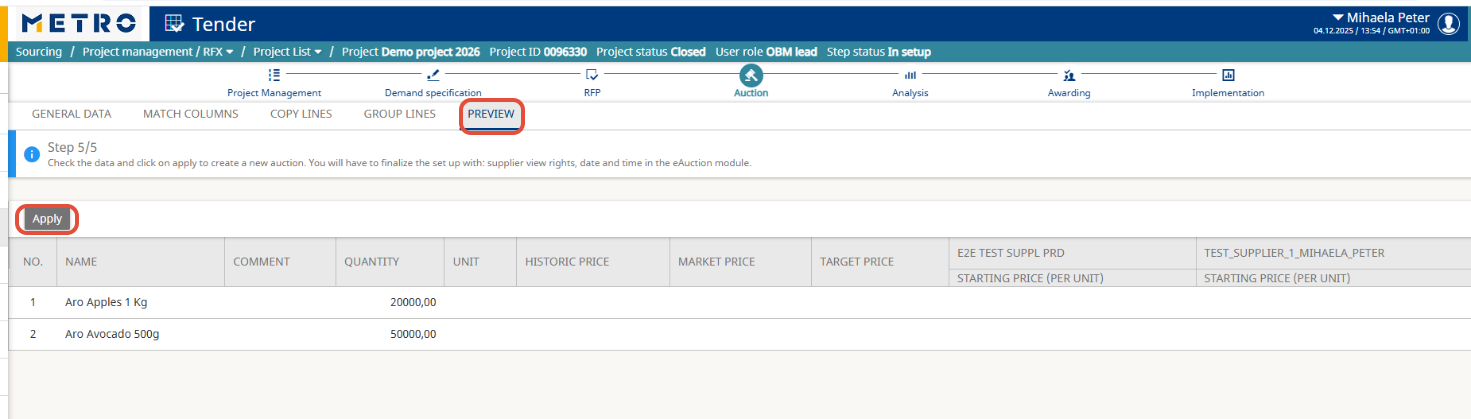
In this final preview step, you can review all information regarding articles and suppliers sourced from Project Management and Demand Specification/RFP.
- Verify that all data is correct and complete.
- If everything looks accurate, click Apply to proceed to the Auction module.
Auction Module
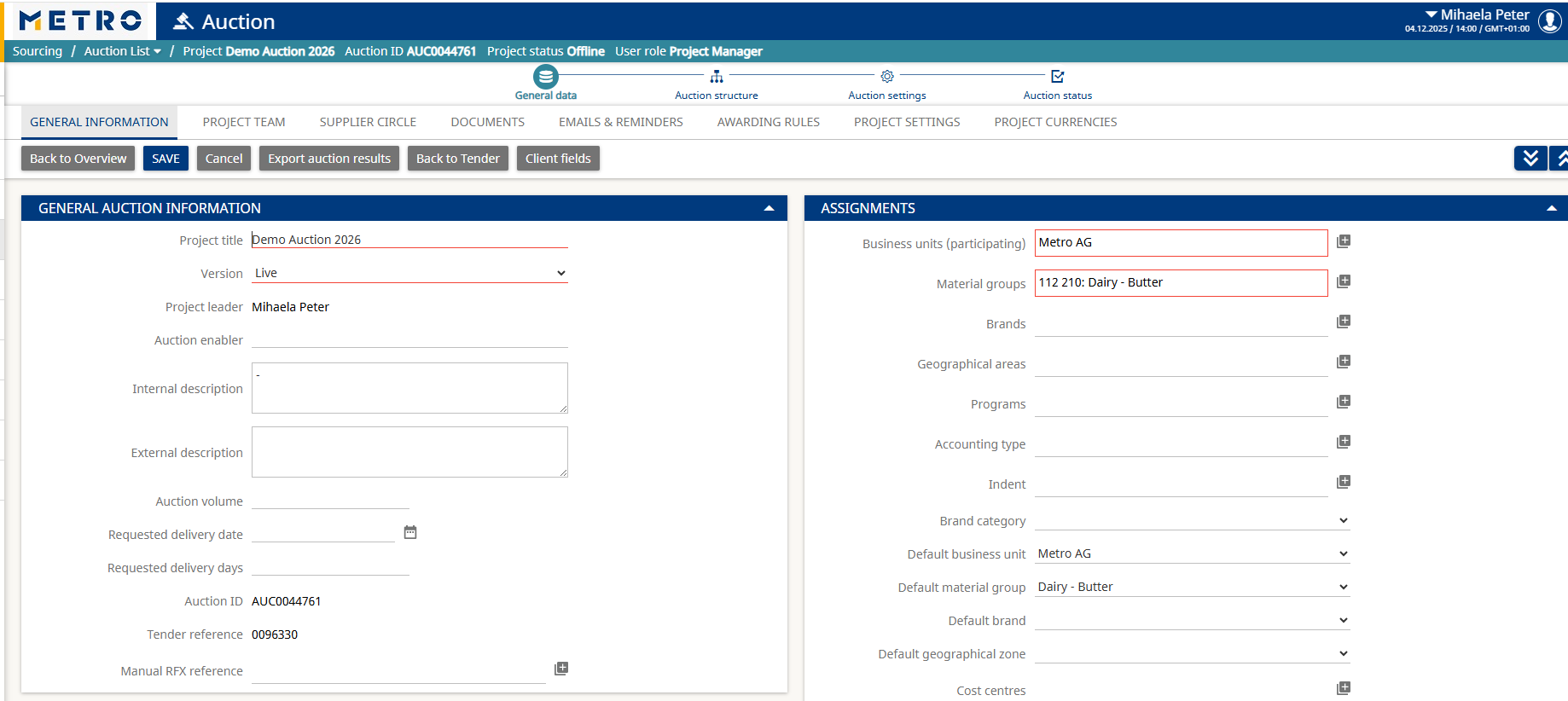
Once you click Apply, you will be transferred to the Auction Module. From this point onward, you can configure all details of your Auction, such as:
- Selecting the Auction Type
- Defining the Auction Structure
- Setting up Auction Settings (e.g., start/end time, starting prices, etc)
Note: Data such as Suppliers, Internal Contacts, Documents (if selected), and Articles from the Project will be automatically transferred into the Auction.
Additional Resources
For more information on setting up different types of Auctions, please refer to the following articles based on your needs:
How to set up Japanese Auction
How to award (local tender) buyer guide
If you need further assistance do not hesitate to Contact us.