
This guide provides a complete, step‑by‑step walkthrough for setting up a Japanese auction in eSourcing. You pre‑configure the start price, the time step (tick interval), and the price step (decrement). At each time step, the system automatically lowers the price by the configured step. Suppliers must confirm/accept the displayed price at every tick to remain in the competition for the current article; those who do not confirm are automatically out.
The auction for each article continues sequentially (one article after another) until only one supplier remains or the configured stopping rule is met . The auction closes with the lowest compliant bid as the winner.
Preconditions & When to Use
- Competition: ≥ 3 suppliers willing to compete (ideally more).
- Transparency: All auction documents/information are shared equally with all suppliers.
- Comparability: Suppliers can meet the same requirement profile (quality, specs, delivery terms).
- Fairness: The winning supplier will be awarded based on the results and rules.
Pre‑Setup Checklist (prepare before creating the auction)
General Conditions (GC) documents➡ View examples and drafts of GC documents
- Supplier Guide➡ View Supplier guides for Auctions
- Supplier List ➡ Learn How to onboard and grant them access to eSourcing
- Requirement Profile(s) – incl. layout/design/images/specs - if needed
- Calculation Sheet – if applicable
- Any other documents you plan to share during the auction
A. Create the Auction from the RFX (to maintain articles and enable awarding)
To conduct awarding after negotiations, create the auction from the existing RFX. This preserves the link between the Demand Specification and the auction positions, ensuring the same articles/positions are maintained in the system. It also enables the awarding workflow to run correctly after the auction.
Why this matters
- Maintains article continuity: keeps the original position IDs and master data so the system recognizes the same items across RFX → Auction → Awarding.
- Enables awarding: Awarding is recognized by downstream systems (e.g., MDW) only when it is executed from the originating RFX project linked to the auction.
- For detailed how‑tos, see:
- How to create new project using Local Tender Template - For local/Country buyers
- How to create new project using Corporate Templates - For International / Metro AG
- How to create Auction from Project/RFX
Recommended for GNFR buyers or for buyers strictly interested in price negotiation via Auction only.
This option is suitable when there is no need to maintain article continuity or perform awarding after the auction.
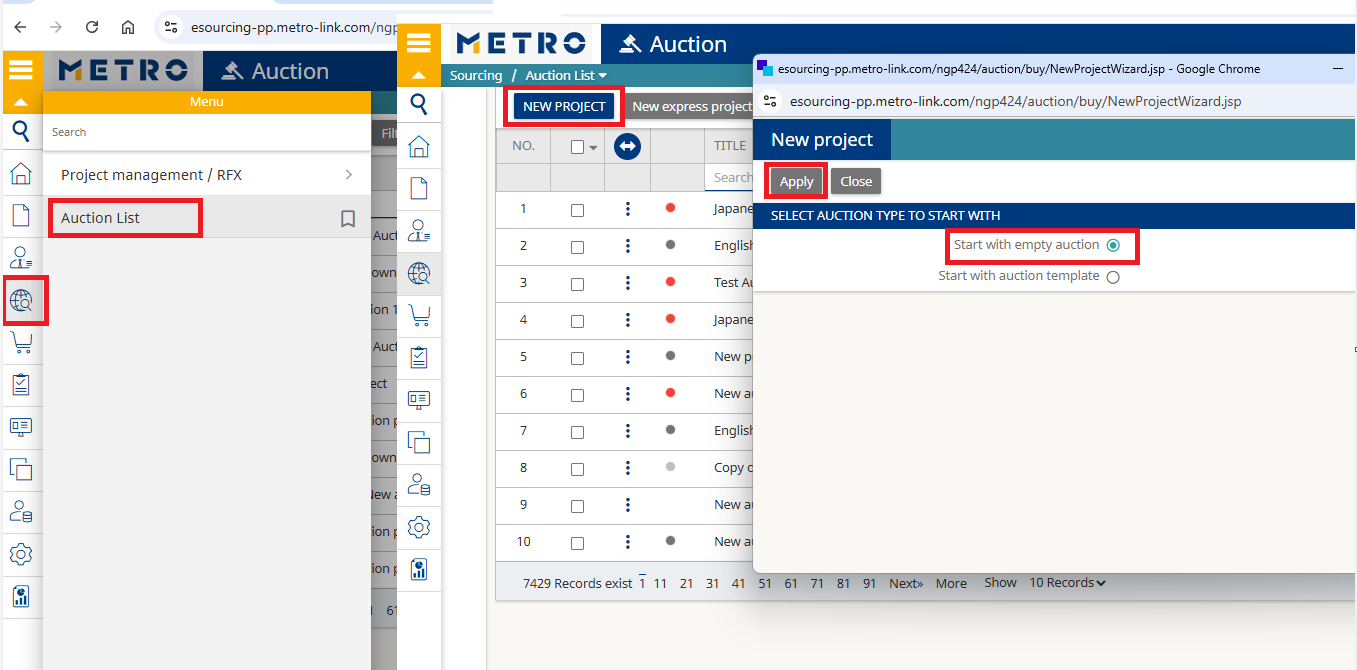
- From the Menu navigate to: Sourcing- Auction List
- Click New project
- Select Start with empty auction and Apply
1.1. General Information
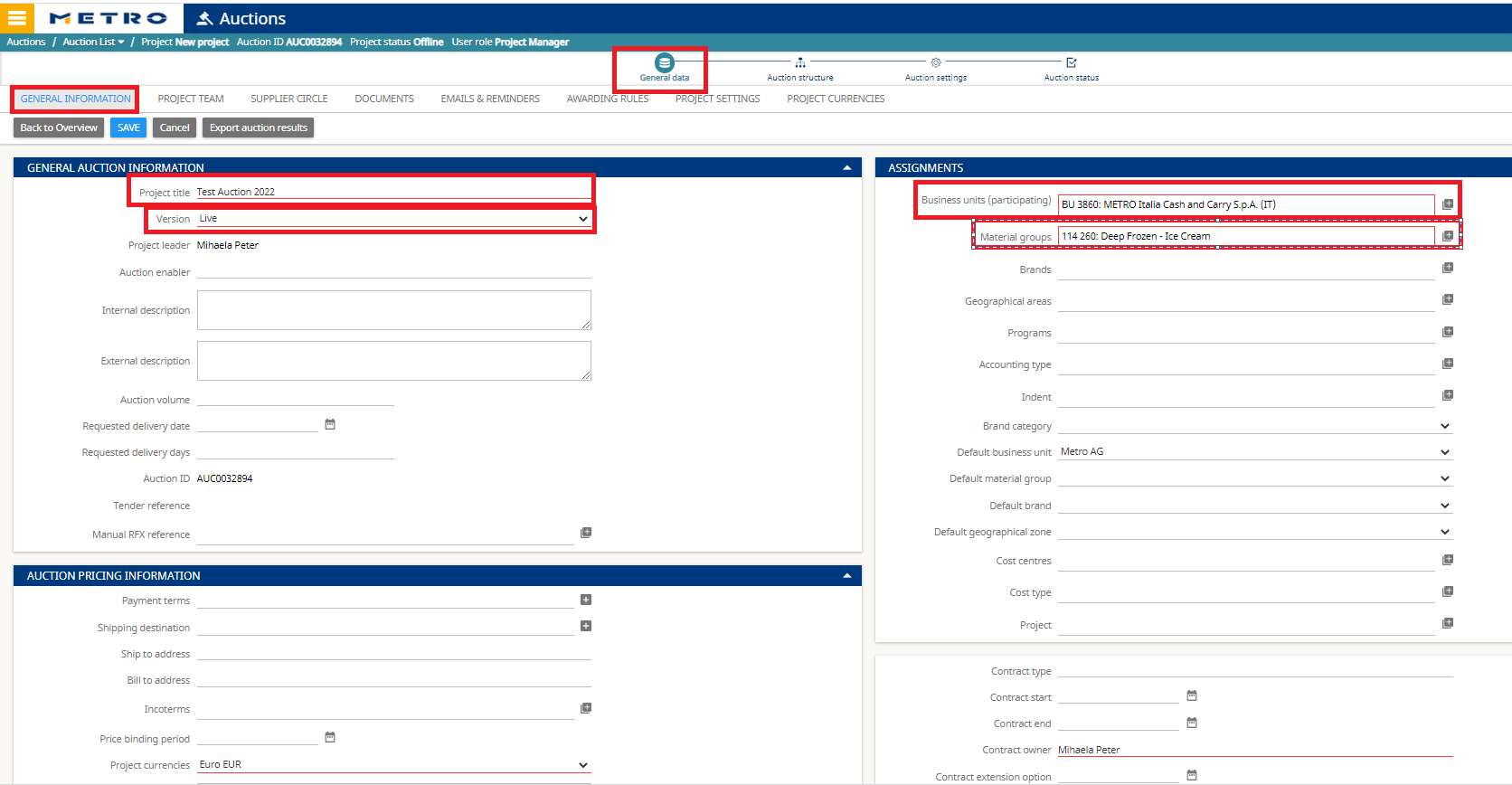
- Project title: Clear, specific name (e.g., ENG Auction – [Material/Category] – [Month YYYY])
- Version: Live
- Business units: Select participating countries
- Material groups: Select COMS for the articles
- Click Save.
1.2. Project Team
- The internal participants from the RFX are copied automatically.
- Click Add to invite colleagues if needed.
- Note: Verify user roles and adjust where required.

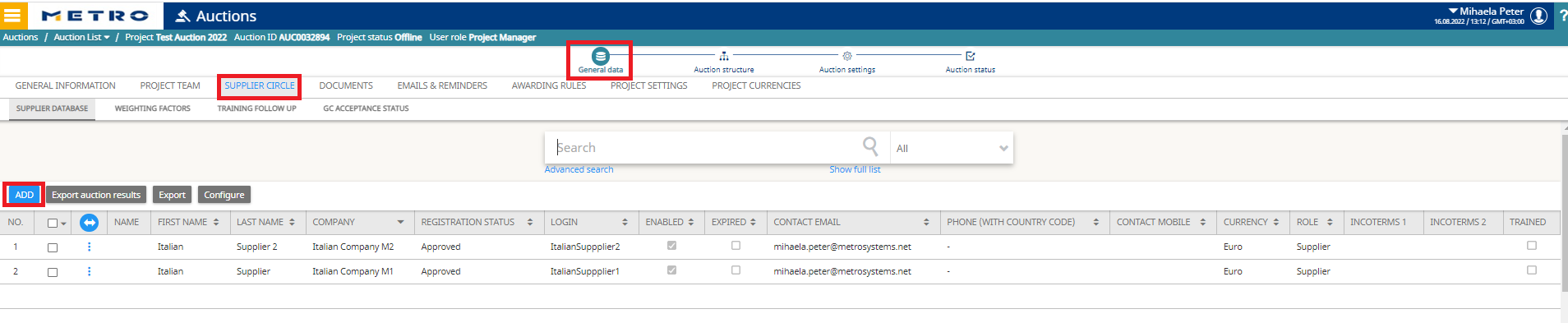
- All RFX suppliers are copied automatically.
- Click Add to invite more suppliers.
- Important: If awarding will follow the auction, ensure all suppliers are present in the RFX (not only in the Auction).
1.4. Documents
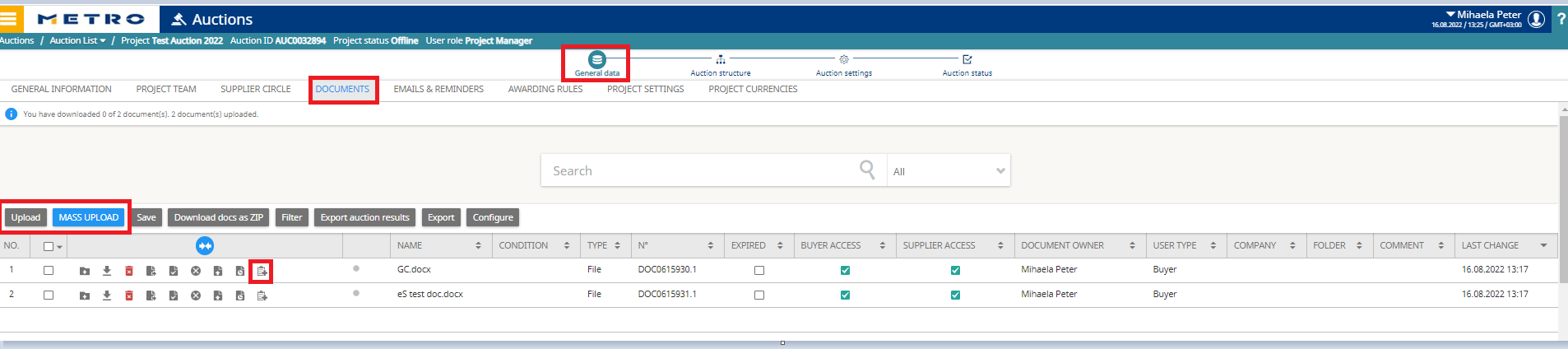
- All RFX documents are copied into the Auction.
- You may Upload additional files; Update the GC (rules) if needed.
- Note: Non‑GC documents copied from the RFX may need supplier access re‑assignment
- Min bid change (decrement/increment)
- Max bid change (if used)
- Decimals (price precision)
- Other position settings
Click Save. - Hints: For bulk updates, Export the Excel template, fill in the data offline, then Import to upload many rows at once.
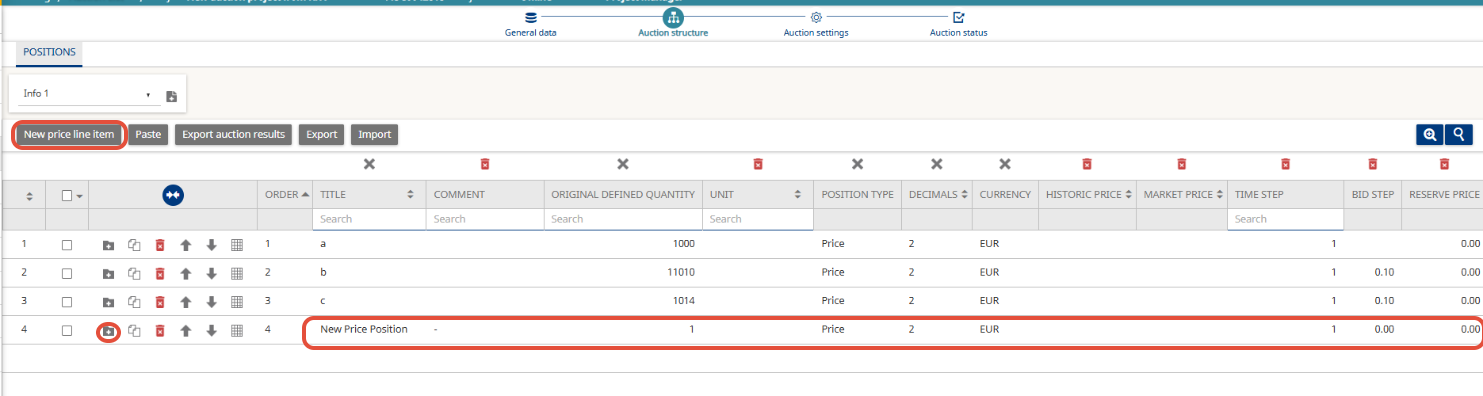
- Use new price Line item if you need to create new Positions (if the Auction was created as Stand alone and not from an RFP.
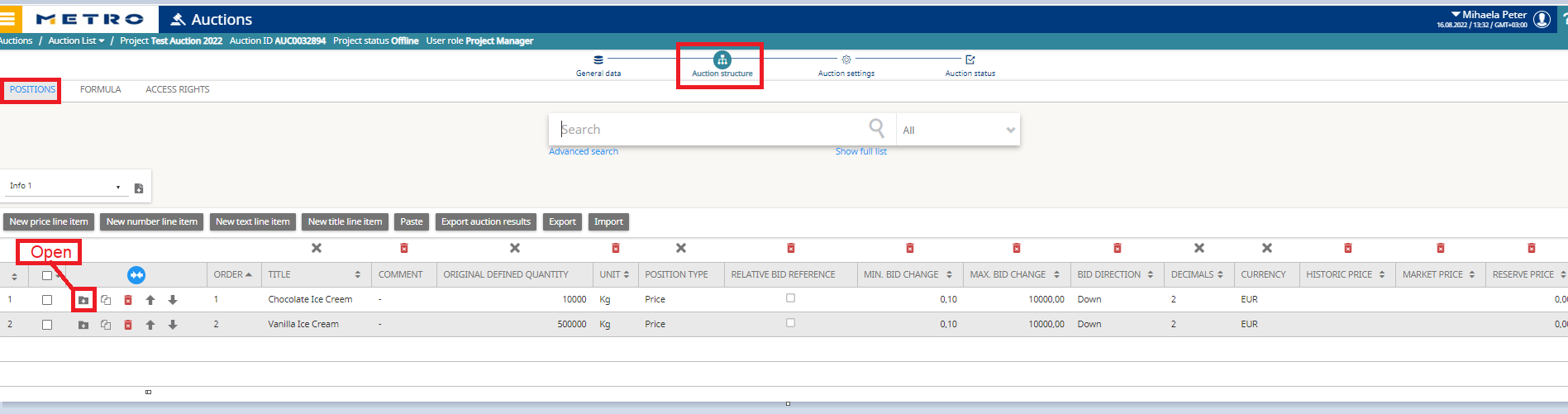
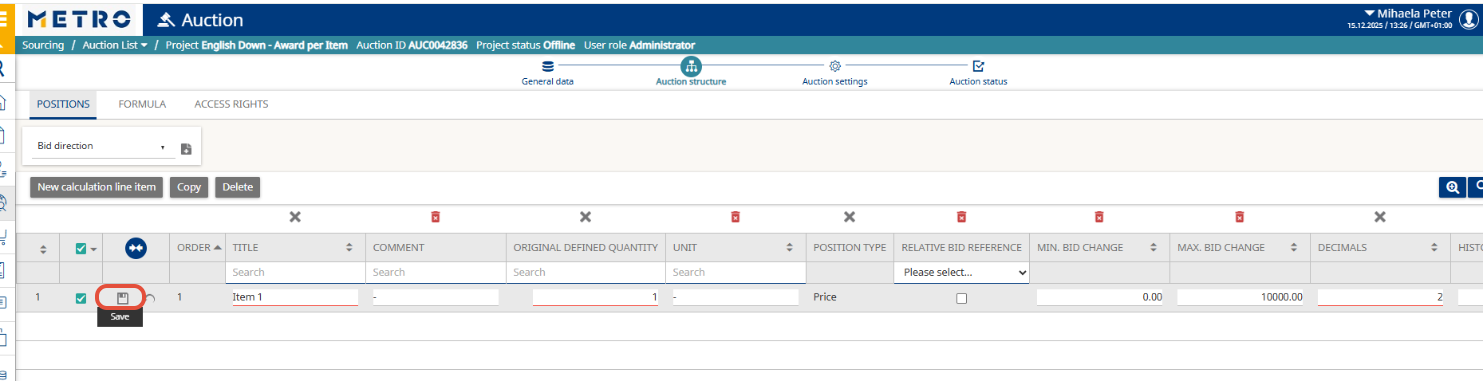
Add new positions (standalone auctions):
- If the auction was created as standalone (not from an RFP/RFX), use New price line item to create positions (articles).
- Enter the Article name, Quantity, Unit, and any Comments, then Save.
3. Auction Settings
3.1. Auction Definition
Auction Type: Japanese
Bidding direction: Down (for buying/reverse auctions)
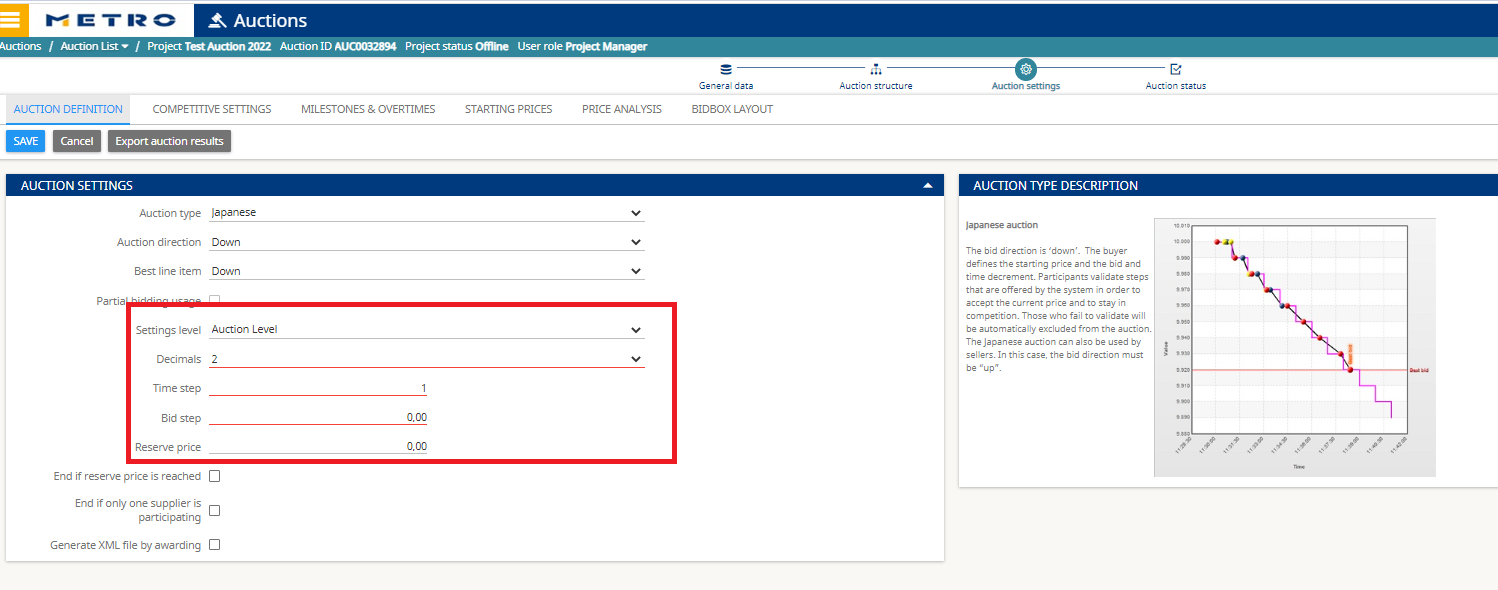
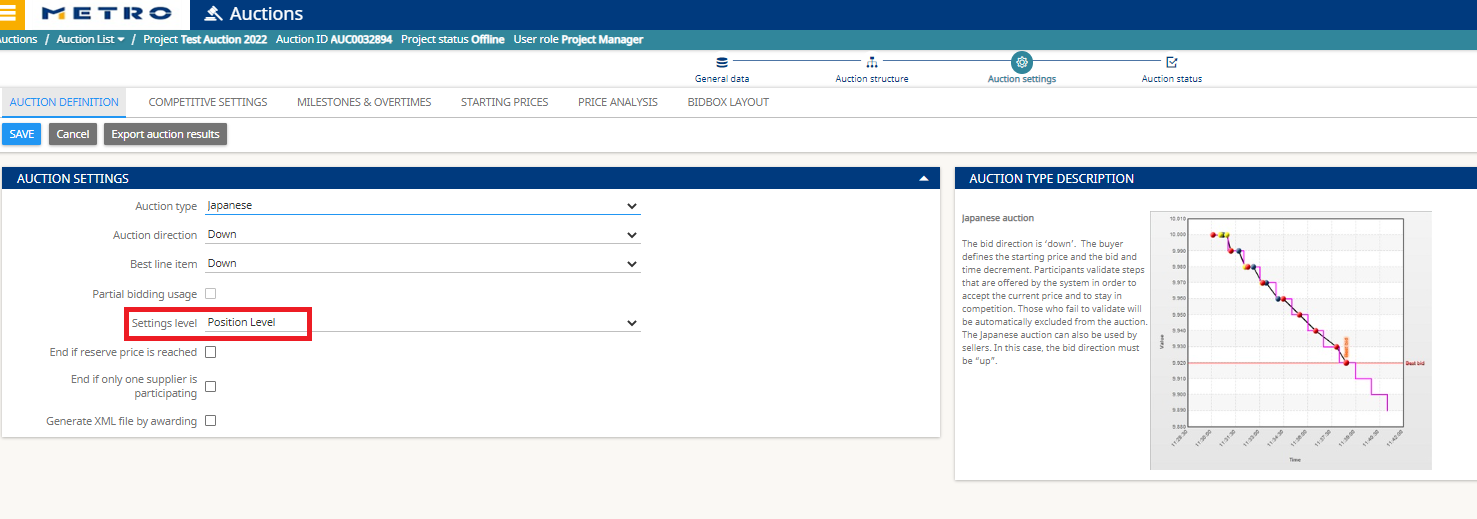
Choose the Settings Level
You can control whether the time steps and bid steps are set globally (same for all articles) or individually (per article):
- Auction Level – One set of Time Step and Bid Step applies to all articles.
- Position Level – Each article can have its own sequence of Time & Bid steps.
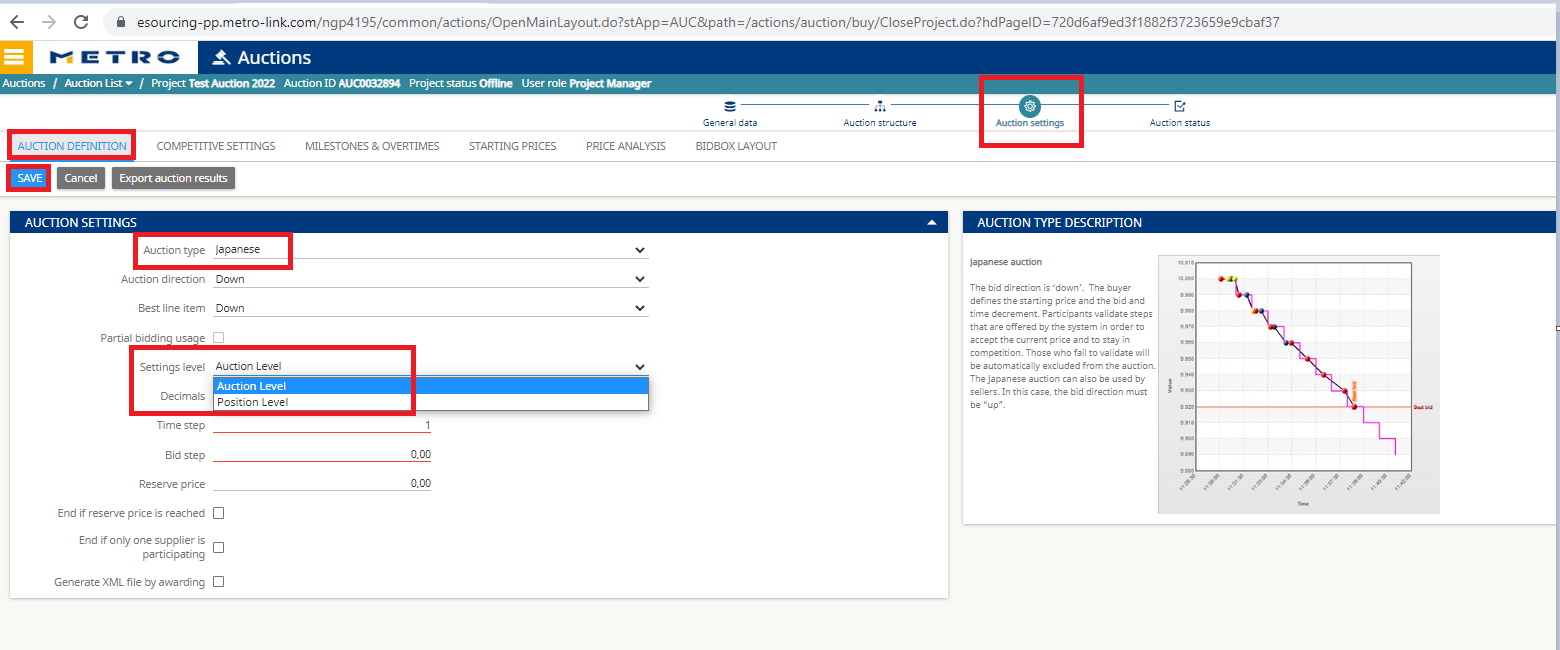
Auction Level selection (uniform steps for all articles)
- Reserve Price, Time Steps, and Bid Steps are defined under Auction definition.
- All articles follow the same clock cadence (same tick interval and decrement sequence).
Position Level selection (individual steps per article)
- Each article’s Time Step and Bid Step are defined separately.
- You will configure:
- The initial Time Step (which governs the Start Price) at Auction Structure → Positions.
- The full sequence of individual Time & Bid Steps at Auction Structure → Position Steps.
3.2 Starting Prices
Path: Auction → Settings → Starting Prices
- Optionally define Start Prices for each article (and, if your configuration requires it, per supplier).
- Click Open, enter values, then Save.


3.3 Milestones
Path: Auction → Settings → Milestones
- Set Auction Start and Auction End date/time.
- Refresh rate: 20–30 seconds is recommended.
- Click Save.

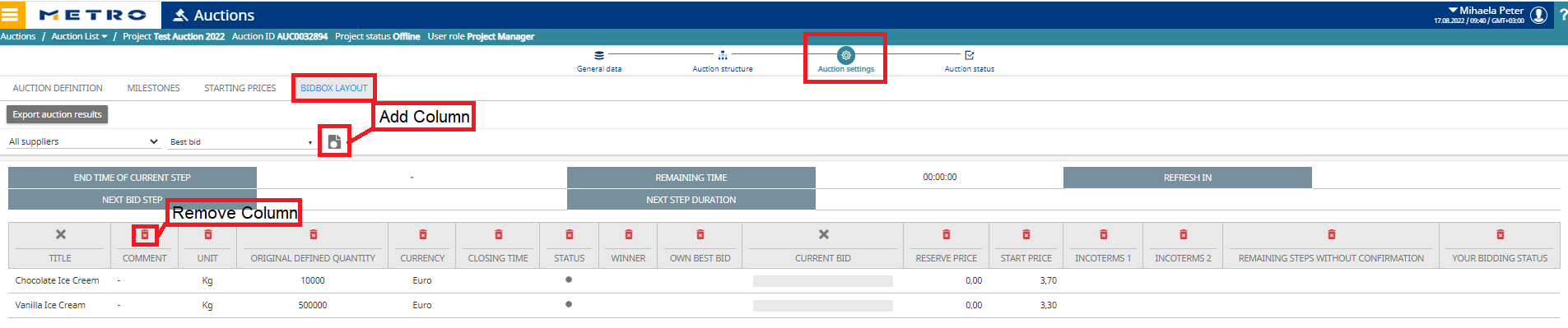
3.4 Bidbox Layout (supplier view)
Path: Auction → Settings → Bidbox Layout
- Customize which columns suppliers see (show/hide as needed).
- Your Bidding Status column shows the supplier’s real‑time status per article:
- Active = supplier is still confirming current prices (and still has Jokers left, if applicable).
4. Auction Structure (continue)
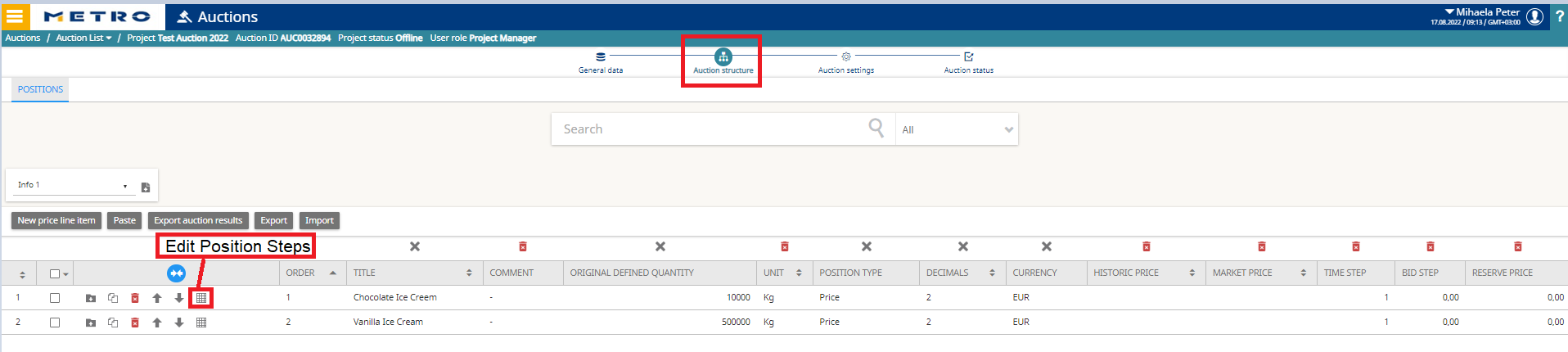
4.1 Positions (check and prepare articles)
Path: Auction → Structure → Positions
- Verify the content copied from Demand Specification (Article name, Quantity, Unit, Comment, etc.).
- Click Open on any article to edit details.
- If you selected Position Level in step 2, define the first Time Step here; this governs the Start Price for the article.
- Click Save.
4.2 Position Steps (create individual time & bid steps)
Path: Auction → Structure → Position Steps
- Click Edit position steps for an article.
- Click New repeatedly to add as many Time & Bid steps as you need (the system will apply each step at every tick).
- Define Time duration per step and the Price to be confirmed (i.e., the price displayed at that step).
- Click Save to confirm the newly created individual steps per article.
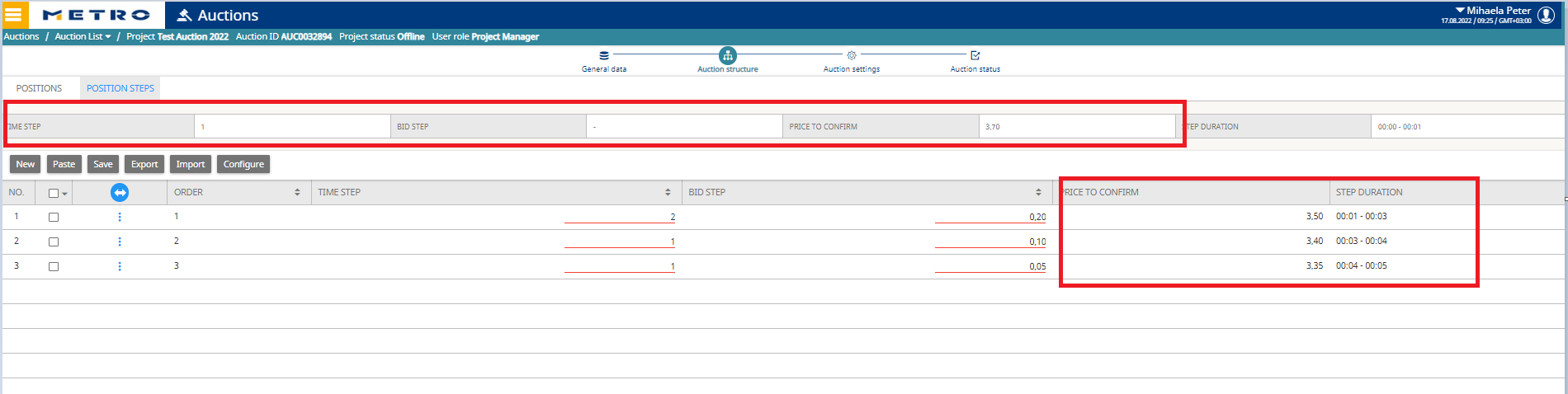
- Keep steps logically progressive (consistent decrements and time windows) so suppliers can anticipate the cadence.
- Plan the total runtime carefully: if you set long time steps and very small bid steps, a single article can take hours. With many articles running sequentially, the auction may not finish within one day.
- Rough estimate: Total duration ≈ (number of steps × time per step) × number of articles, plus any overtime extensions. Aim for a cadence that fits your business window (e.g., 2–4 hours total), or split across multiple sessions/days if necessary.
5. Joker (optional)
In Japanese auctions, you can grant suppliers Jokers—allowing them to skip one or more steps without confirming the price and still remain in the competition.
Where to set:
Path: General Data → Supplier Circle
- Select the supplier → set Max. steps without confirmation (i.e., number of Jokers).
- You may apply the same number to all suppliers at once or set different values per supplier.
- Click Apply to confirm.
Compliance recommendation: Use equal conditions (same number of Jokers) for all suppliers to ensure fairness and auditability.


Why Jokers matter
- Operational resilience: Jokers provide a short buffer in case of technical or connectivity issues during bidding (e.g., brief network drop).
- Time to react: A few minutes are usually enough for the supplier to call the Buyer/Project Lead, who can temporarily Pause the auction if needed.
- Continuity & fairness: This mechanism helps prevent accidental elimination due to transient issues and supports fair competition.
6. Auction Status & Publish
Click Publish to set the auction Online.
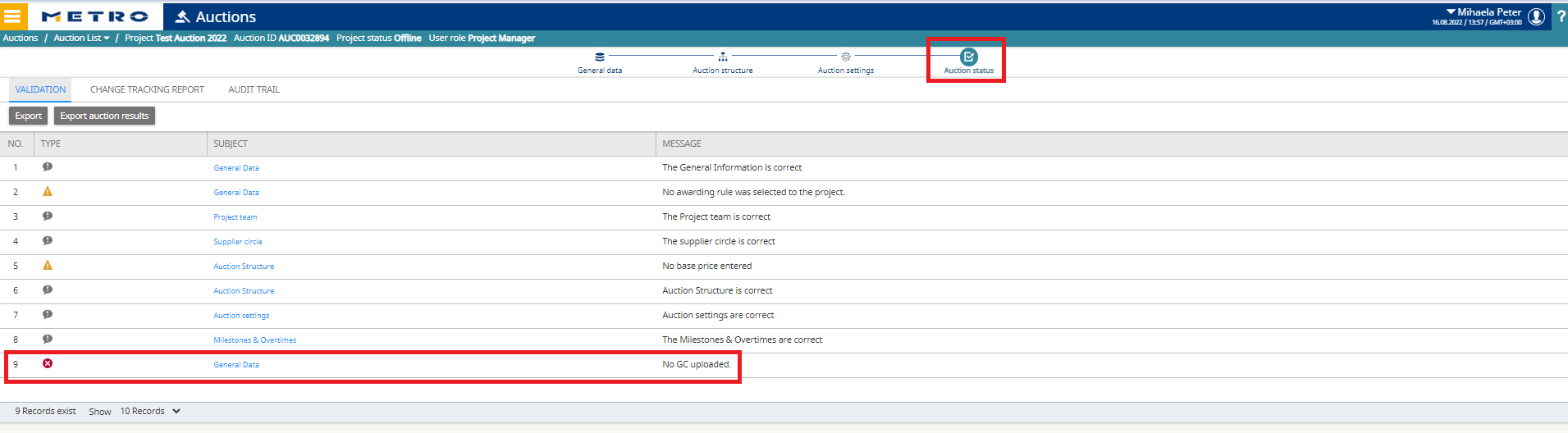
Recommendation: Publish the auction a few days in advance—ideally 3–5 days before the bidding start.
This buffer allows suppliers to:
- Analyze the documents (GC, requirement profiles, articles, starting prices).
- Confirm access and resolve any login/account issues (password resets, user rights, SSO).
- Ask clarifying questions ahead of time, ensuring a smoother bidding start.
Note: Publishing early does not start the bidding; the auction will open at the configured Start date/time. The system also sends an automatic reminder 30 minutes before bidding begins.
What suppliers receive:
- An email invitation with access to the auction.
- They can accept documents, review articles and starting prices.
Lifecycle:
- At the start time, status changes from Online → Bidding automatically.
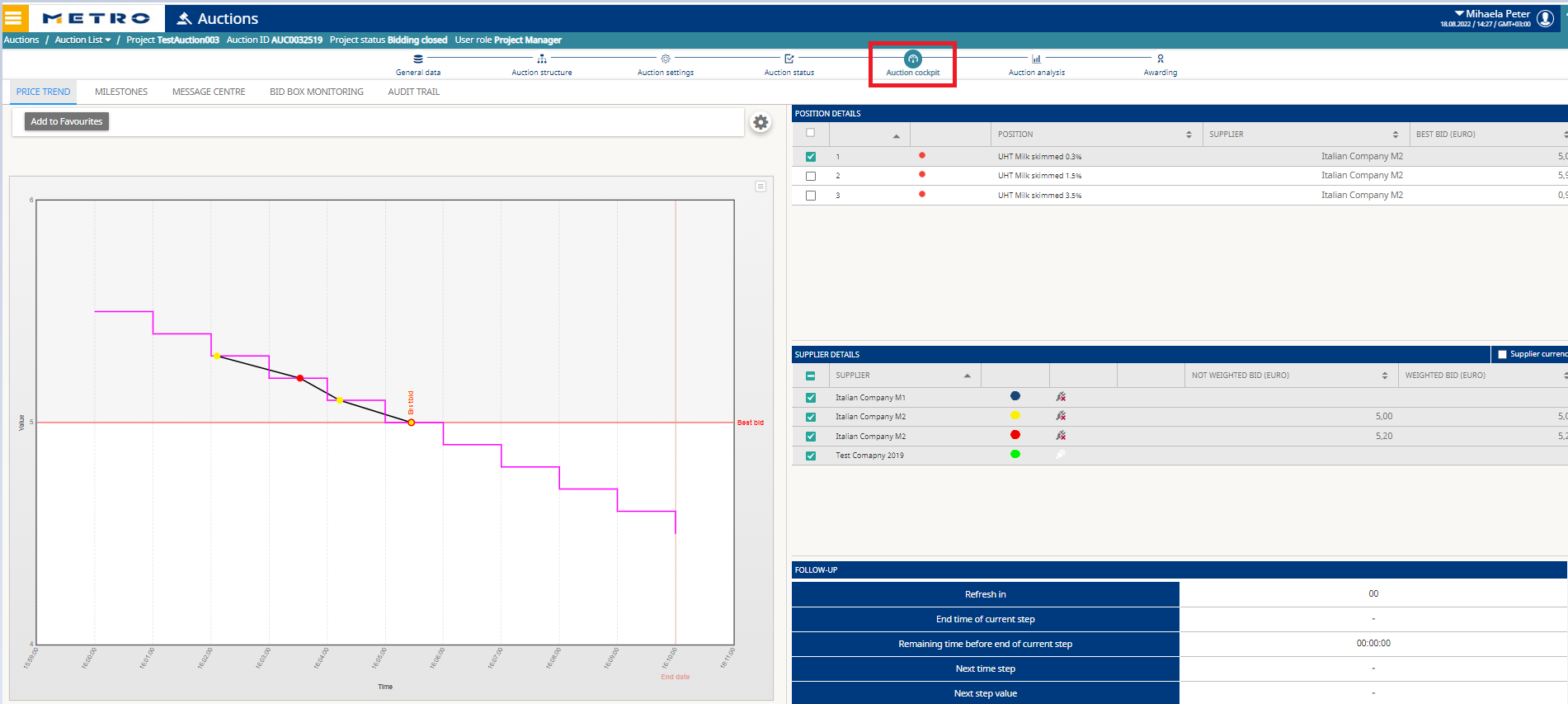
- Monitor via Auction Cockpit or Auction Analysis.

Additional Resources
➡ See also: How to monitor the auction during the bidding
If you need further assistance do not hesitate to Contact us.