
You have been invited to participate in an international common sourcing project.
Your task as a Country Buyer is to submit quantities based on your country’s sales potential.
The Project Leader will provide all necessary product information, including:
- Article descriptions
- Product quality details
- Price indications (if applicable)
Main Steps
1. Log in and Access Your Project
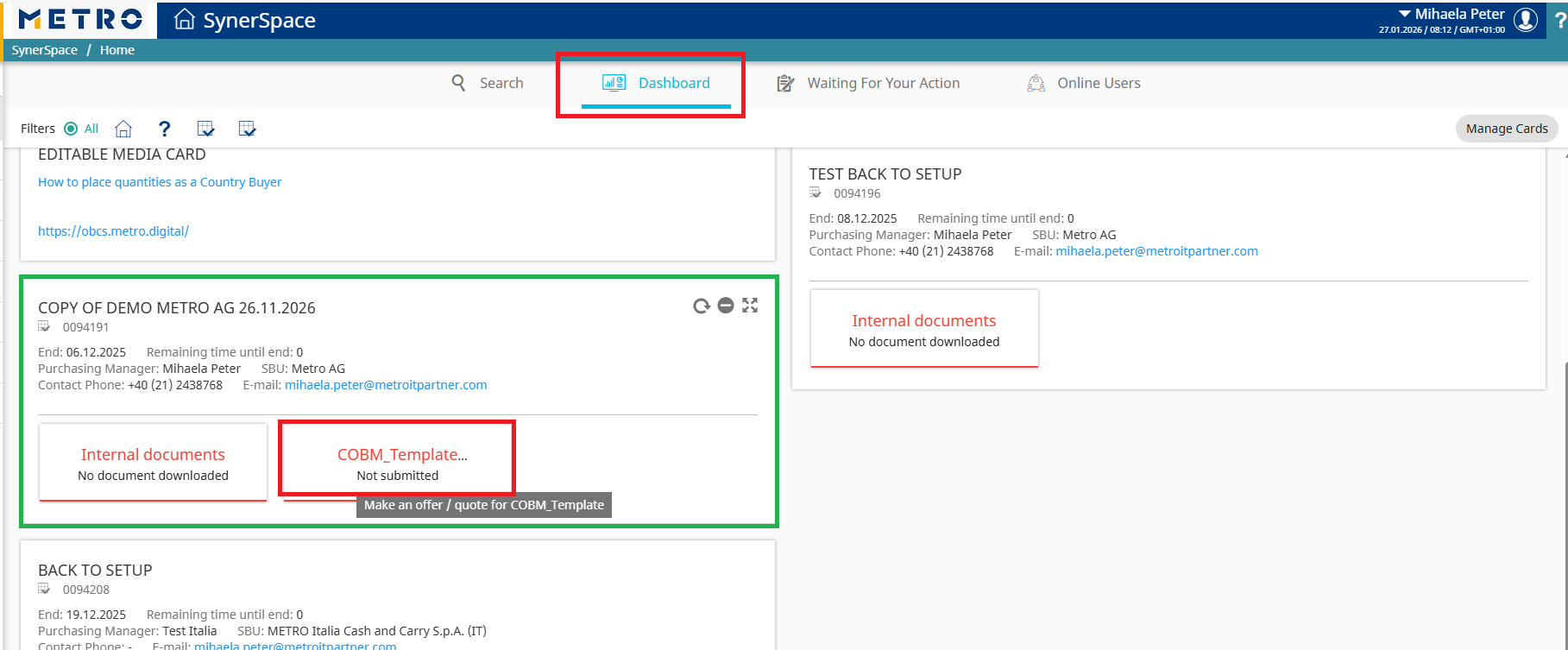
Option A — Dashboard
Click on the project card to open it.
Your Dashboard displays all active and pending projects.
Option B — Project Management
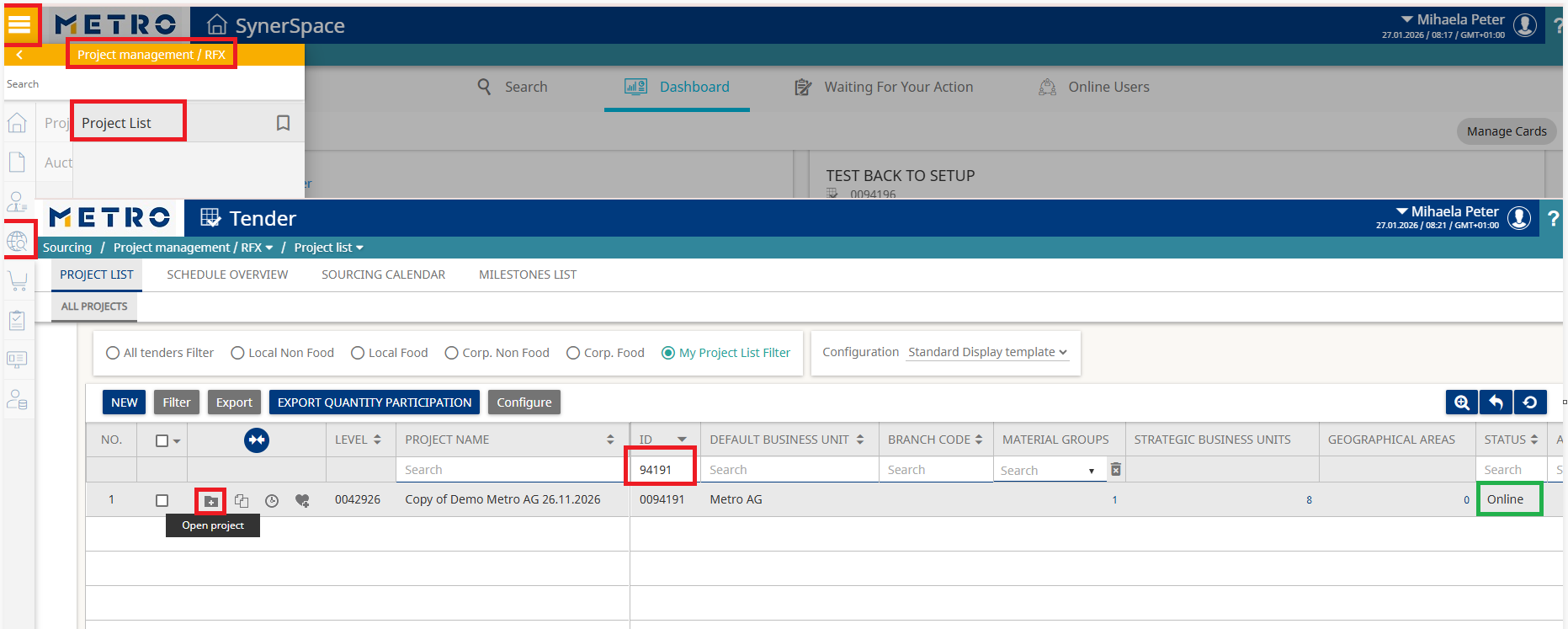
Navigate to: Menu → Sourcing → Project Management / RFX → Project List
Find your project and click the Open Project icon.
Inside the project, you will see:
- Project Name
- Project ID
- Project Leader
- Additional project details
Important
The project status must be Online or Extended in order for you to place quantities.
If the project is Closed or In Analysis, quantity entry is not possible.
Please contact the Project Leader if this occurs.
2. Go to the Demand Specification
Click on the Demand Specification tab.
This is where you will enter the required quantities.
Using Export/Import (optional but recommended for big project)
You may use the Export function to download the quantity template.
Steps:
- Click Export
- Fill in your quantities in the Excel file
- Save the file as Unrestricted
- Use Import to upload your completed file back into the system
3. Enter Your Quantities
Locate the column: Quantities (In Selling Units)
Enter your values for each article as required.
Click Save.
4. Publish Your Responses
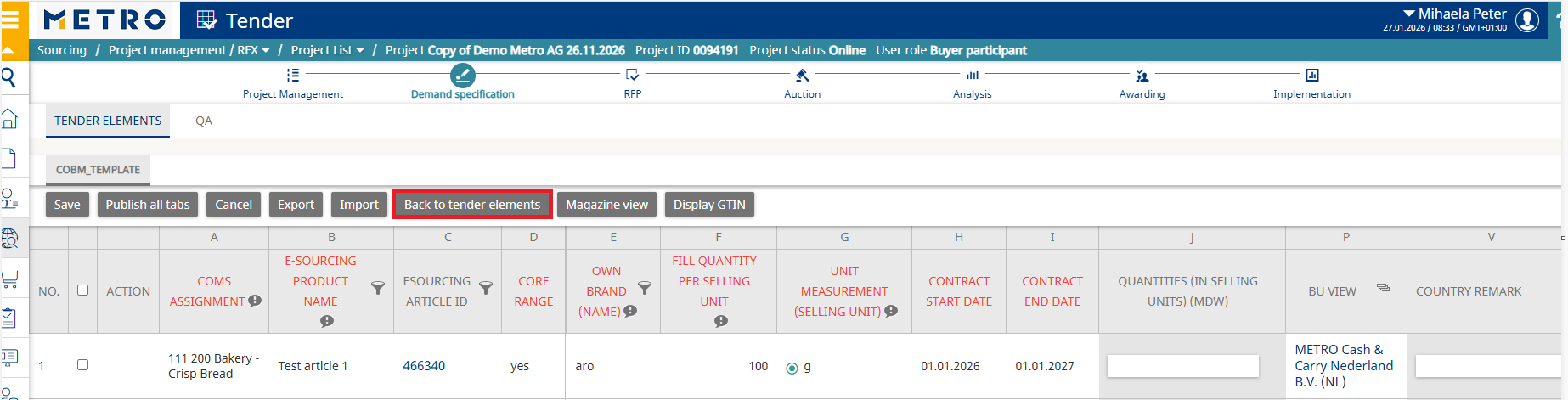
Click the Publish All Tabs icon.
This step is required for your submitted quantities to become visible to the Project Leader.
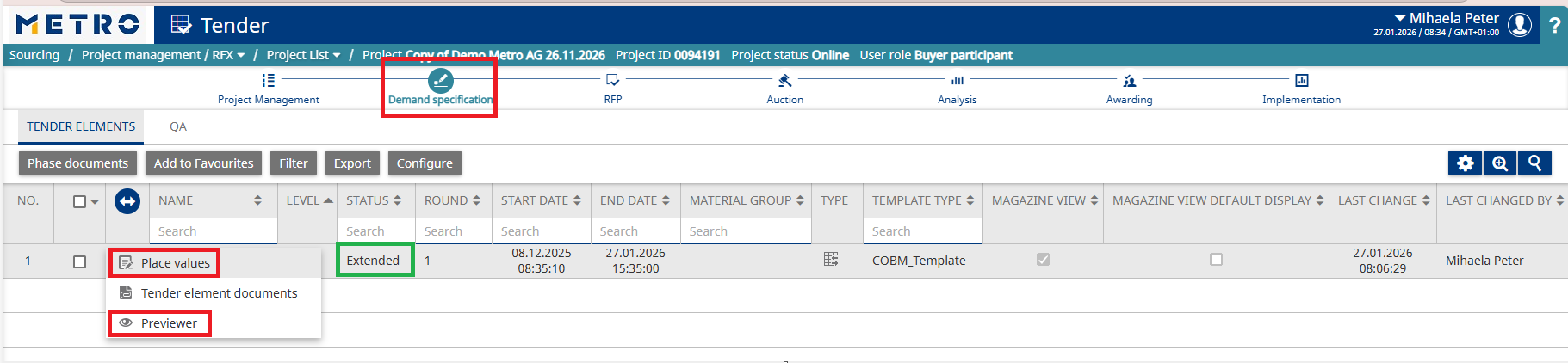
Click Back to Tender Elements to find two useful tools:
Previewer
Allows you to review the quantities you previously entered and published.
Place Values
Allows you to update or correct your quantities — only if the project status is: Online, or Extended
Once the project moves to Closed or In Analysis, changes are no longer allowed.
For any further questions do not hesitate to contact us.