This user guide describes optional auction settings available in eSourcing. Use these settings when they support the auction design, supplier experience, and required level of competitive transparency.
1. Auction Structure
1.1 Position types
The Auction Structure defines the positions included in the auction. Select the position type according to the information suppliers must enter or the information the system must calculate or display.
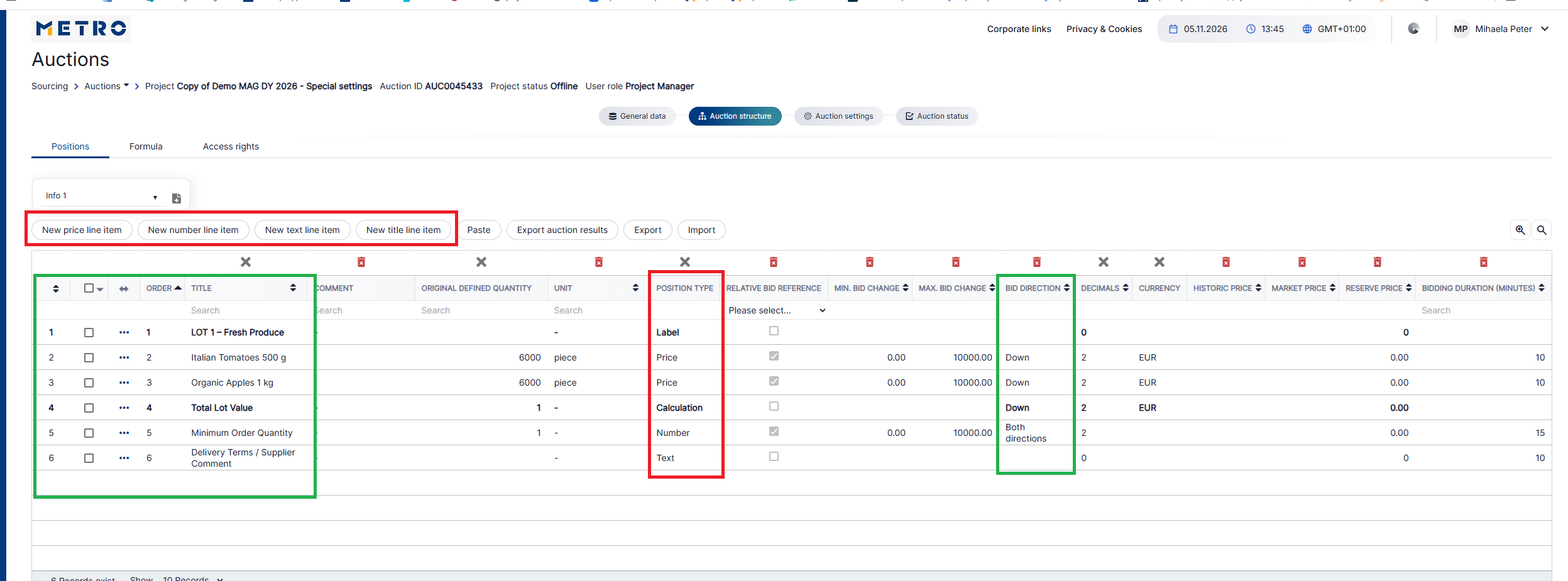
Position type | Example supplier input/display | Purpose and when to use |
|---|---|---|
New Price line Item | €1.25 | The main commercial bidding position. Supplier enters or changes the price during the auction. Use for products/services where suppliers compete directly on price. |
| New Title line item | Not editable | Use as a section header to organize the auction. Helpful when you have several product categories, lots, countries or BUs. No supplier response is expected. |
| New calculation line item | System calculated | Used when a value should be derived automatically from other values rather than manually entered. For example: Bid Price × Quantity. |
| New number line item | 250 | Captures a numeric value that is not the auction price. Useful for MOQ, lead time in days, pallet quantity, warranty months, capacity, etc. |
| New text line item | Delivery within 3 working days | Captures free-text information from the supplier. Useful where the response cannot reasonably be represented by price or a number. |
1.2 Calculation Positions
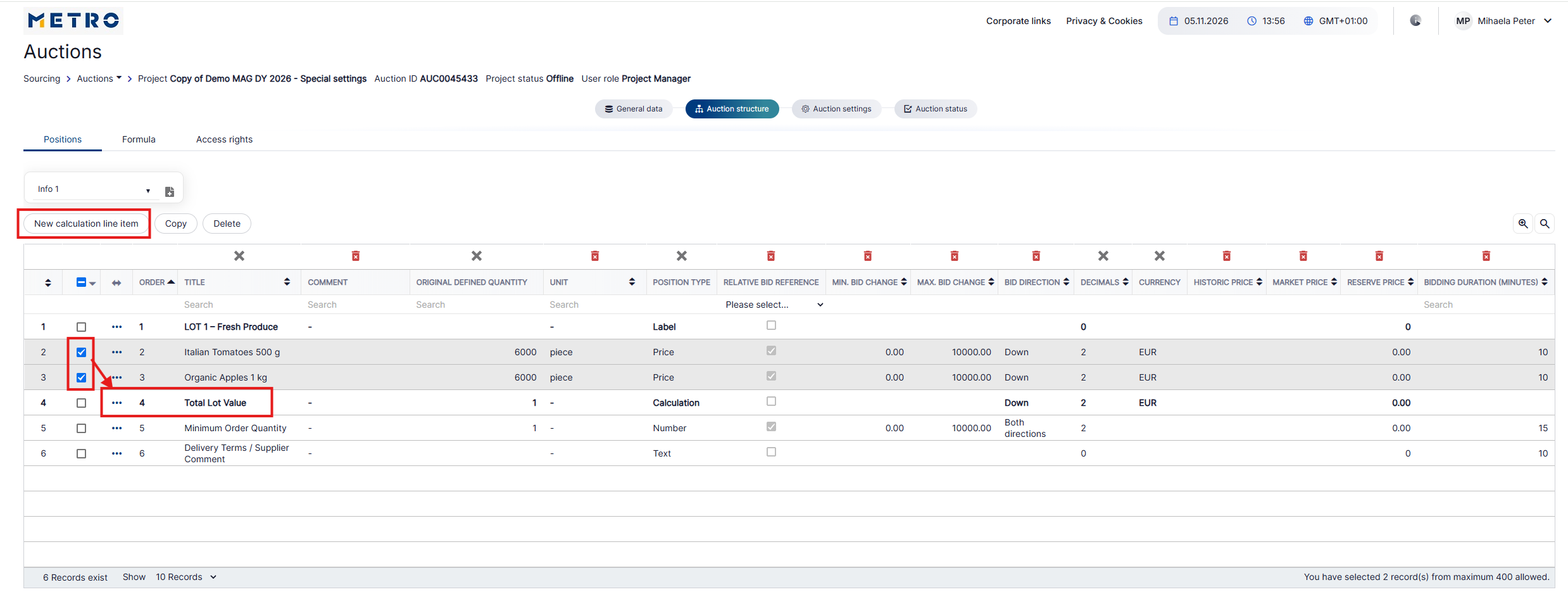
To add a Calculation position, first select the Price or Number positions that should be included in the calculation. By default, the formula uses the quantity and value of each selected position:
Quantity × Price (Position 1) + Quantity × Price (Position 2) + …
The formula is automatically extended according to the number of selected positions.
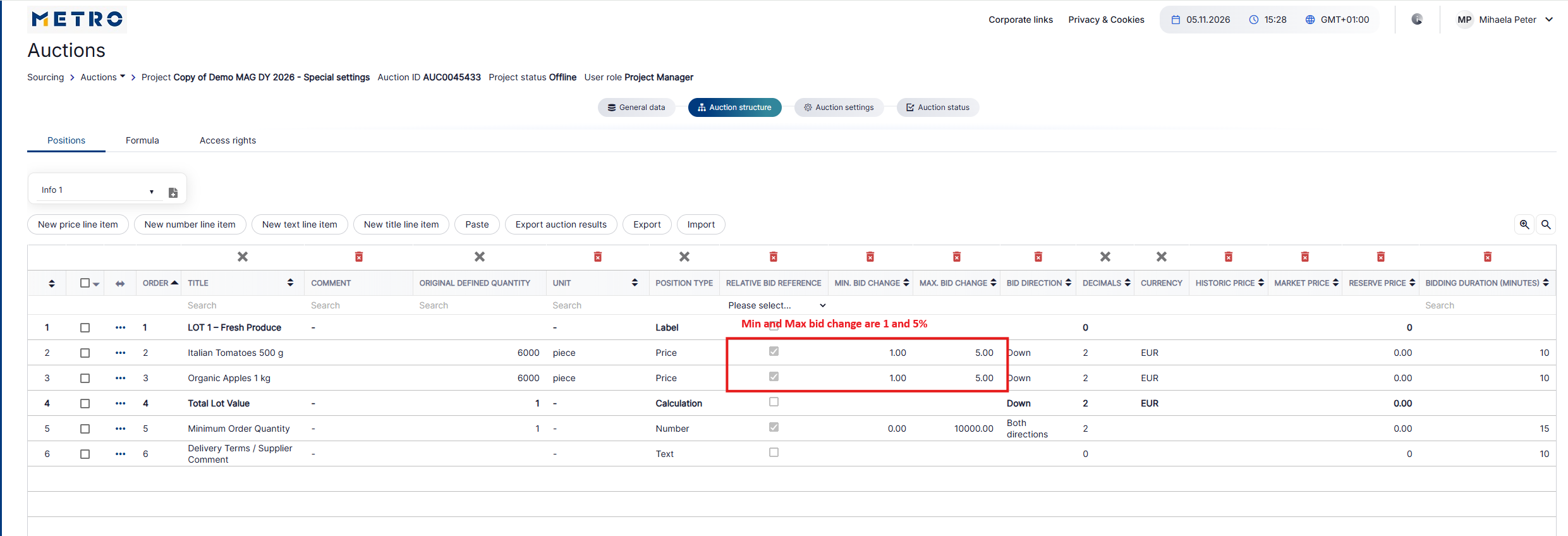
1.3 Relative Bid Reference
Select Relative Bid Reference when the Minimum Bid Change and Maximum Bid Change for the position should be entered as percentages rather than absolute values.
2. Auction Settings
2.1 Bidding Options
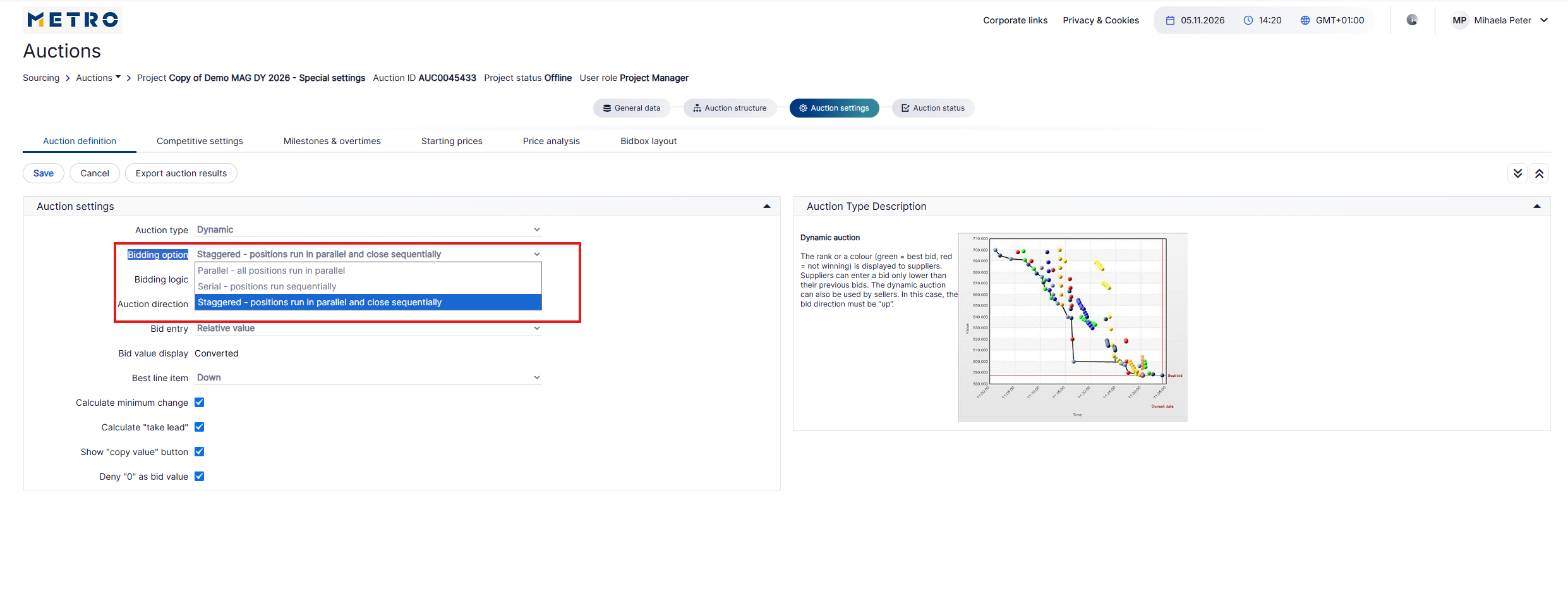
The Bidding Option determines how the auction positions are opened and closed during the bidding phase.
Bidding Option | Description | When to use |
|---|---|---|
Parallel | All positions are open for bidding at the same time. | Best for auctions with many independent articles where suppliers should bid on several positions simultaneously. |
Serial | Positions run one after another. The next position follows after the previous position finishes. | Best for fewer or important articles when suppliers should focus on one position at a time. |
Staggered | Positions run in parallel but close sequentially, allowing suppliers to progressively focus on the remaining open positions. | Best when suppliers should bid on multiple articles but have different closing times, allowing focus to shift to the remaining positions. |
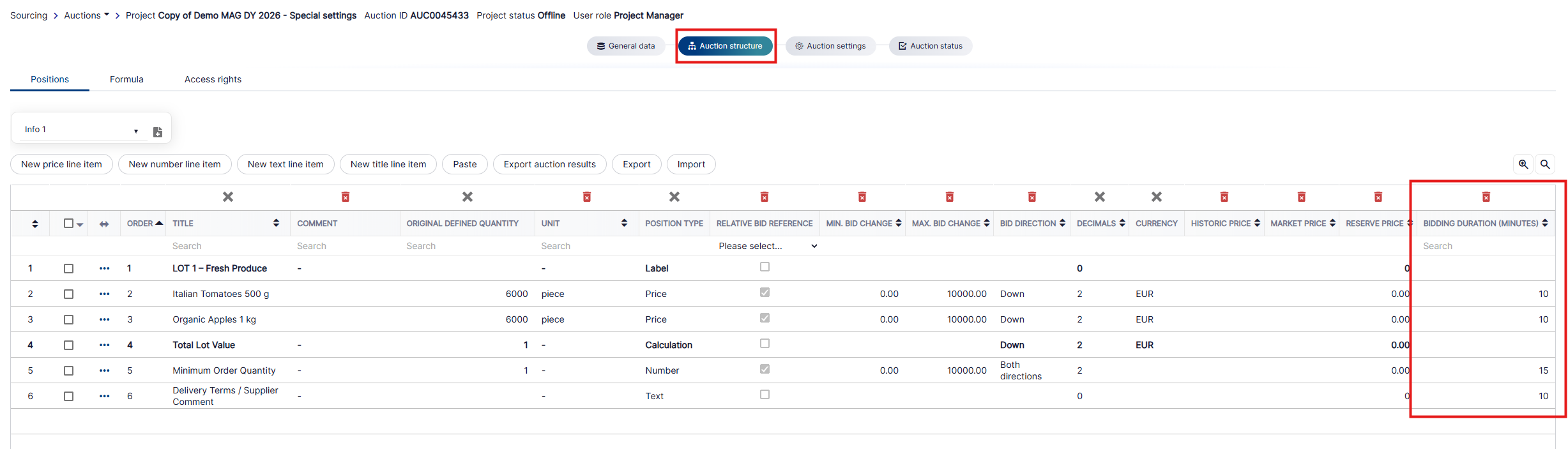
Important: Configure the bidding duration for each position in Auction Structure when the selected bidding option requires position-level timing.
2.2 Supplier Options Available in the BidBox
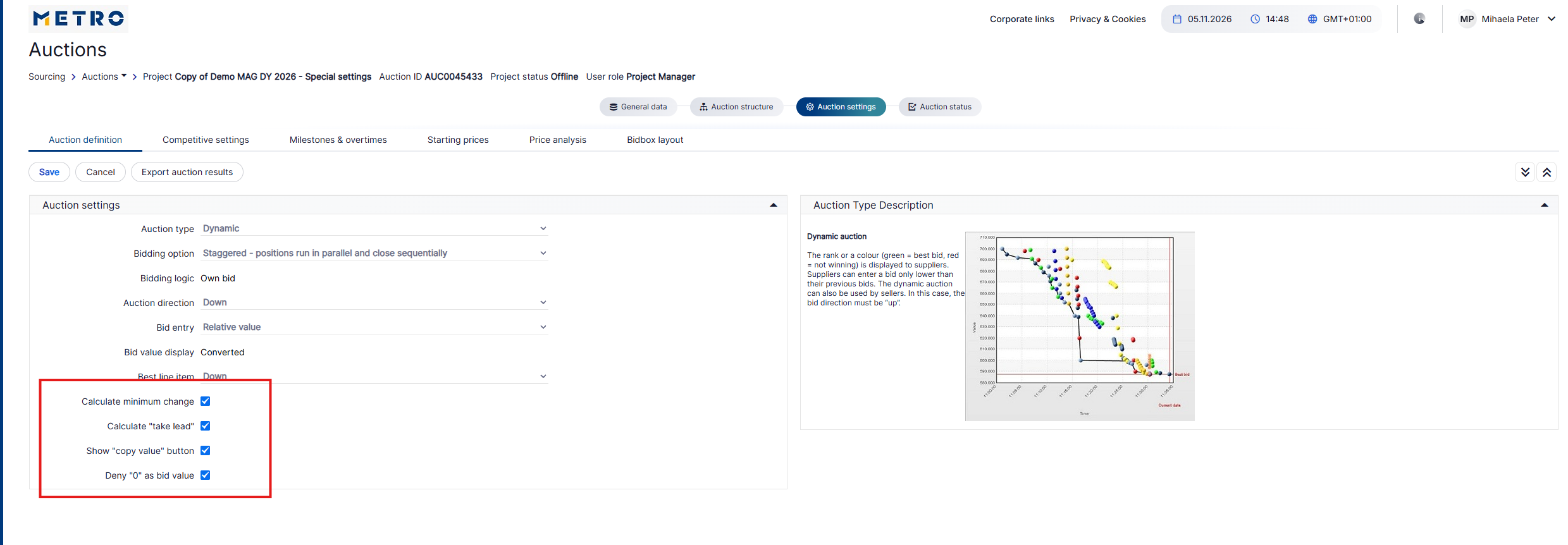
These settings add functions to the supplier BidBox and can simplify bid entry or enforce bid-value rules.
Setting option | Description | Usage / Comment |
|---|---|---|
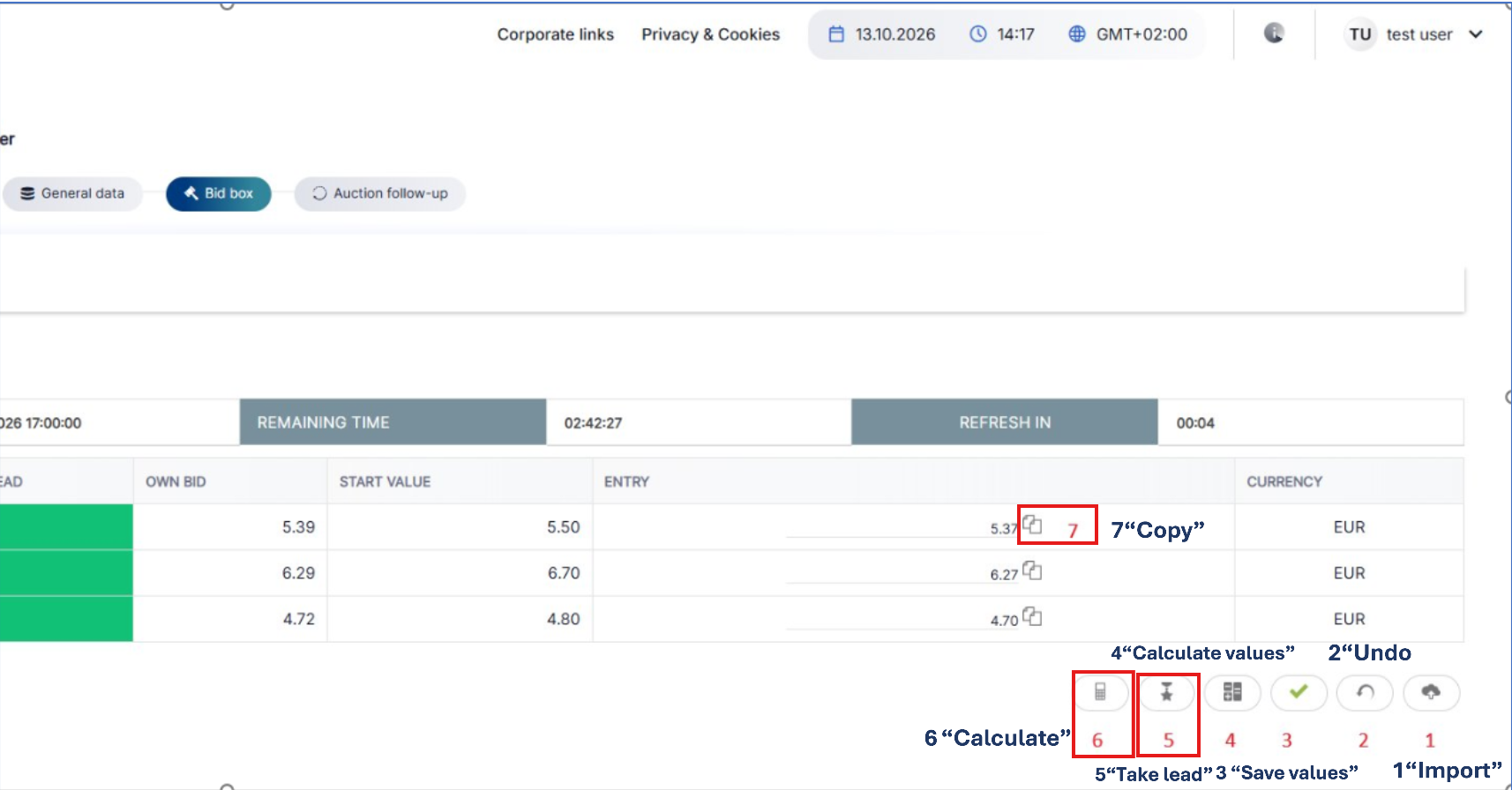
Calculate minimum change | Displays a button that allows the supplier to calculate the minimum bid change required during the auction. | Recommended for Dynamic Auctions. When the supplier selects the button, the system automatically fills the minimum bid value allowed based on the configured minimum bid change. The value is applied to the relevant positions. The supplier must still select Save to submit the bid. |
Calculate “take lead” | Displays a button that calculates the bid value required for the supplier to take the leading position. | Can be used in an English Auction. Generally not recommended for a Dynamic Auction. When selected, the system automatically fills the values required to take the lead for the applicable positions. The supplier must still save the bid to submit the values. |
Show “copy value” button | Displays a button that allows the supplier to copy an entered bid value to other positions. | Useful when the same price applies to multiple positions. The supplier enters the value for one position and uses Copy Value to populate the same value for the remaining applicable positions, reducing manual entry. |
Deny “0” as bid value | Prevents suppliers from submitting a bid value of 0. | Recommended when 0 is not considered a valid commercial bid. This helps prevent accidental zero-value bids from being submitted during the auction. |
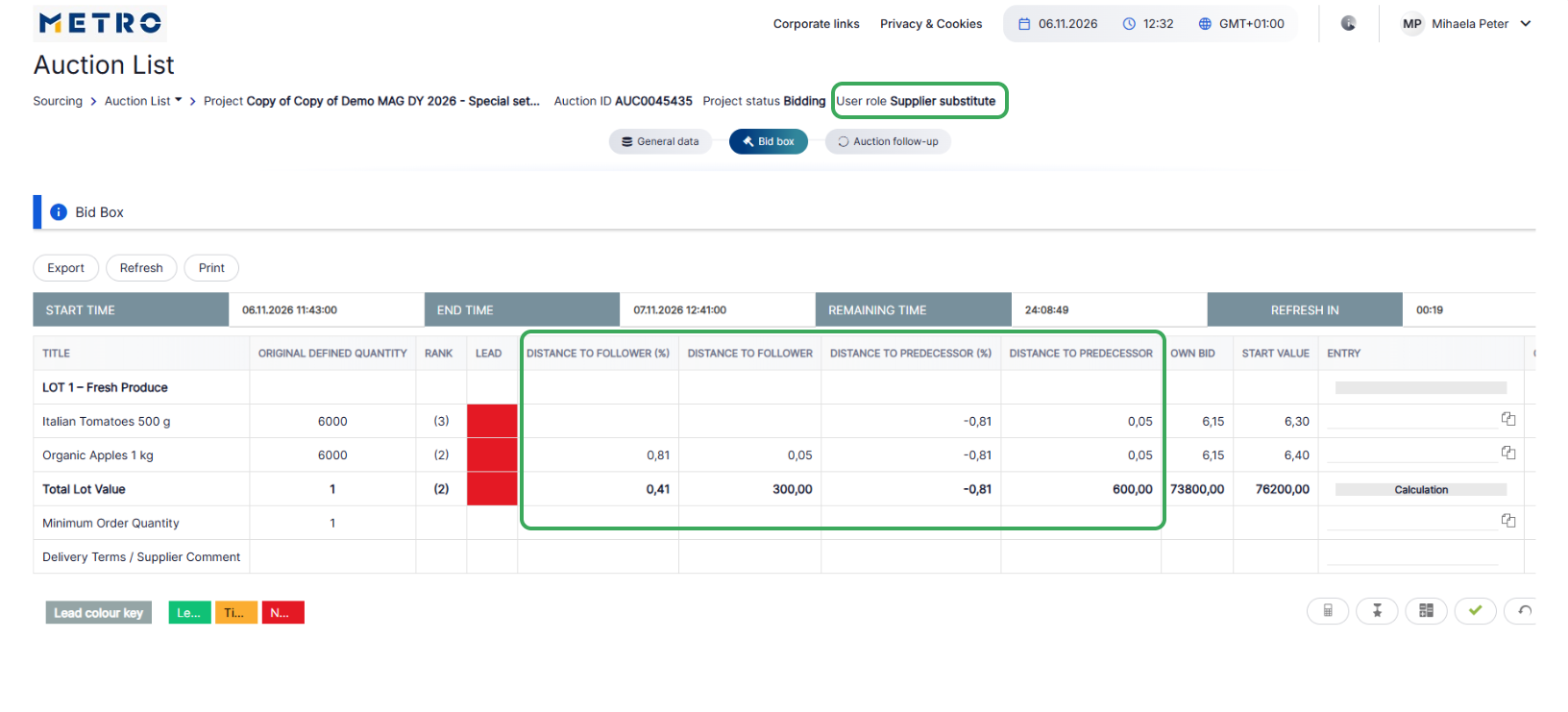
Supplier View:
2.3 Bid Entry
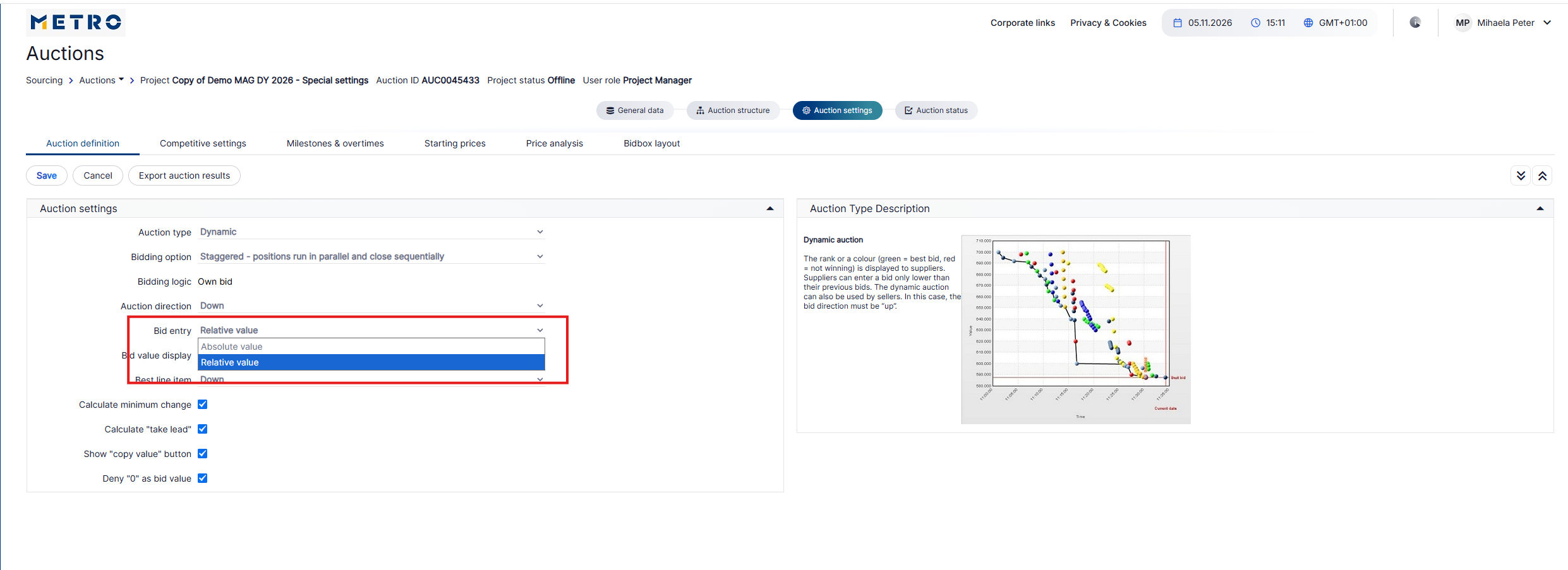
Bid Entry determines whether suppliers enter the final bid value directly or enter a percentage change from a reference value.
| Bid Entry | Short description | Example | When to use |
|---|---|---|---|
| Absolute Value | Supplier enters the actual bid value directly. | Starting price: €6.00 → Supplier enters €5.40. | Use when suppliers should directly enter the final price/value offered. |
| Relative Value | Supplier enters a percentage change, and the system calculates the resulting value. | Starting price: €6.00 → Supplier enters 10% reduction → Calculated bid: €5.40. | Use when suppliers should compete by entering a percentage decrease instead of a final value. |
3. Competitive Settings
3.1 Tie Mode
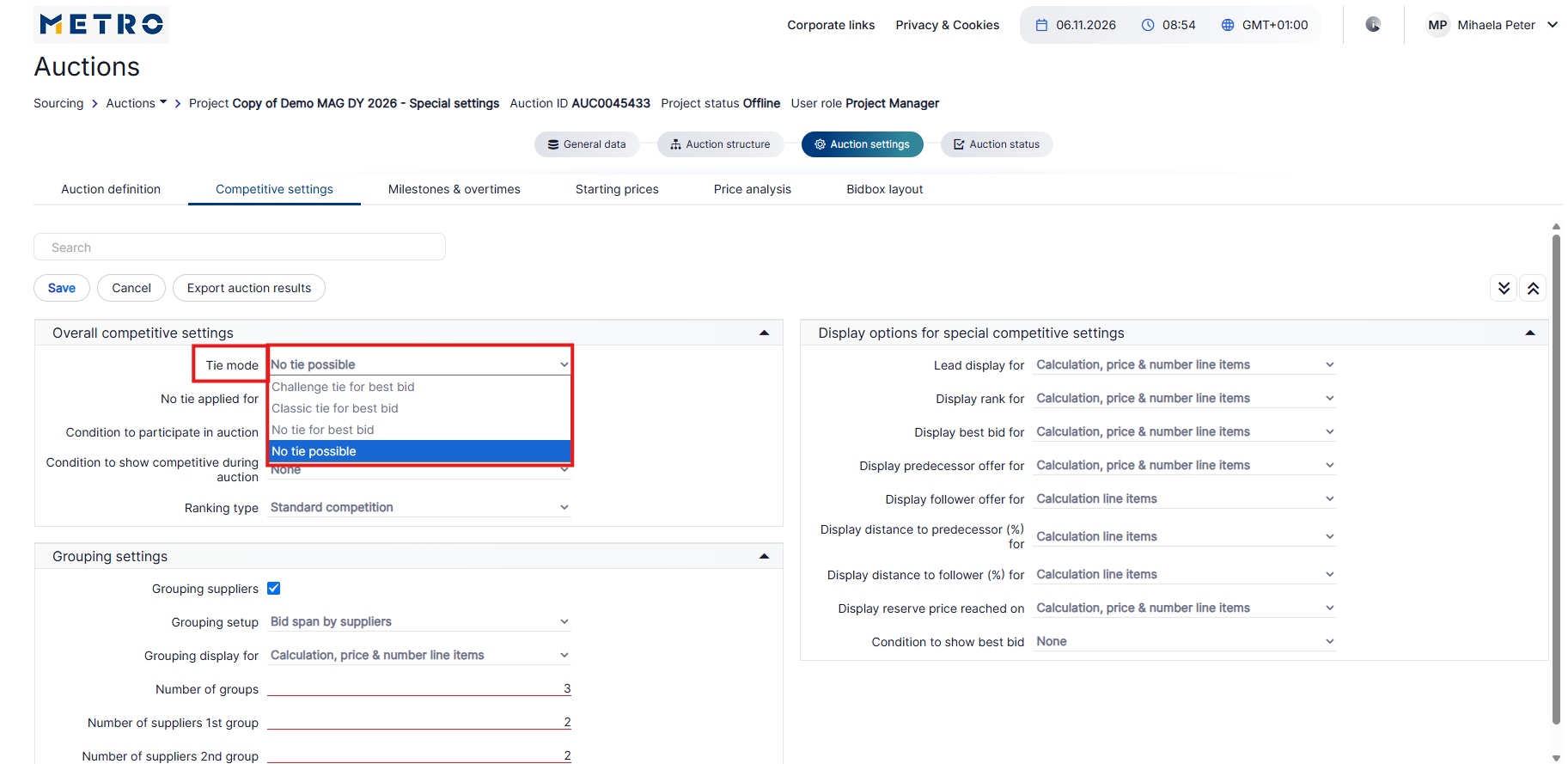
Tie Mode defines how the system handles identical bids, including whether equal bids are allowed and how a supplier can take the lead.
| Tie mode | Description | When to use / Comment |
|---|---|---|
| Challenge tie for best bid | When suppliers reach the same best bid, a supplier must submit a new, improved bid to take the leading position. Matching the existing best bid alone is not sufficient to take the lead. | Use when equal best bids may occur, but suppliers should be encouraged to continue competing to obtain the leading position. Suitable when the objective is to drive further bid improvement after a tie. |
| Classic tie for best bid | Multiple suppliers are allowed to submit the same best bid. When suppliers have identical best bids, the supplier who submitted the bid first is ranked higher. | Use when equal best bids are acceptable and submission time should determine the ranking between suppliers offering the same value. |
| No tie for best bid | Suppliers are not allowed to match the current best bid. A new bid must be strictly better than the existing best bid. | Use when suppliers should always improve the current best bid instead of matching it. This prevents two suppliers from holding the same best bid. |
| No tie possible | The auction is configured so that identical bid values are not permitted. Bidding rules, such as minimum bid changes or increment/decrement requirements, ensure that ties cannot occur. | Use when all bid values should remain unique, not only the current best bid. This is the strictest option for preventing ties. |
3.2 Ranking Type
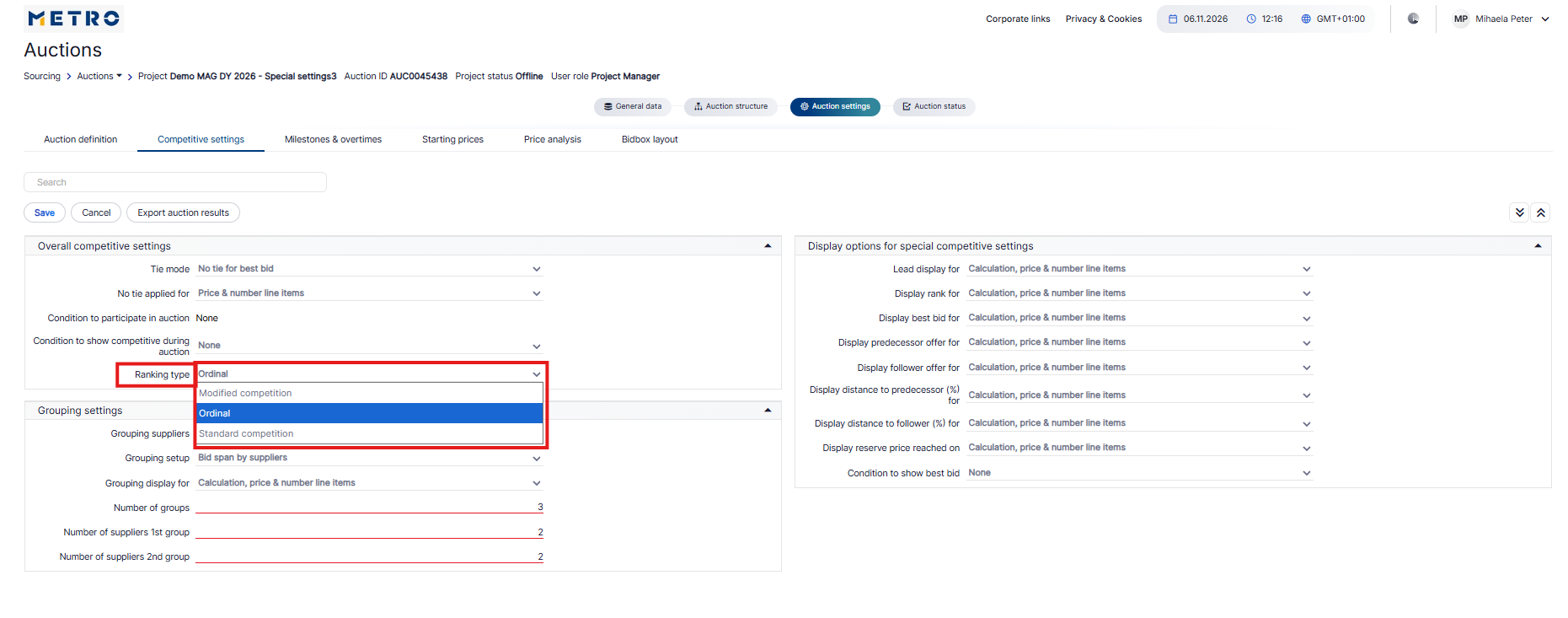
Ranking Type determines how supplier ranks are assigned, particularly when two or more suppliers submit the same bid value
| Ranking Type | Description | Example | When to use |
|---|---|---|---|
| Standard Competition | Suppliers with the same bid receive the same rank, without skipping the next available rank. | Supplier A: €6.00 → Rank 1. Supplier B: €6.20 → Rank 2. Supplier C: €6.20 → Rank 2. Suppliers B and C have identical bids, so both receive Rank 2. | Use when suppliers with equal bids should be shown as equally ranked, while keeping the ranking sequence simple. |
| Modified Competition | Suppliers with the same bid receive the same rank, but ranking positions may be skipped to account for tied suppliers. | Supplier A: €6.00 → Rank 1. Supplier B: €6.20 → Rank 3. Supplier C: €6.20 → Rank 3. Because Suppliers B and C are tied, both receive Rank 3, and Rank 2 is skipped. | Use when the ranking should reflect the number of suppliers ahead of or sharing a position, making the competitive position more explicit. |
| Ordinal | Each supplier receives a unique ranking position. If two suppliers submit the same bid, the supplier who submitted the bid first receives the higher rank. | Supplier A: €6.00 → Rank 1. Supplier B: €6.20 → Rank 2. Supplier C: €6.20 → Rank 3. Supplier B submitted €6.20 first, so Supplier B receives the higher rank. | Use when every supplier must have a distinct rank and the timing of equal bids should determine their order. |
3.3 Display Options for Competitive Settings
Depending on the auction type, some competitive information is displayed in the BidBox by default. In a Dynamic Auction, Lead and Rank are typically displayed. In an English Auction, Best Bid is typically displayed. Display Options for Competitive Settings determine which competitive feedback is available and for which position types it can be shown.
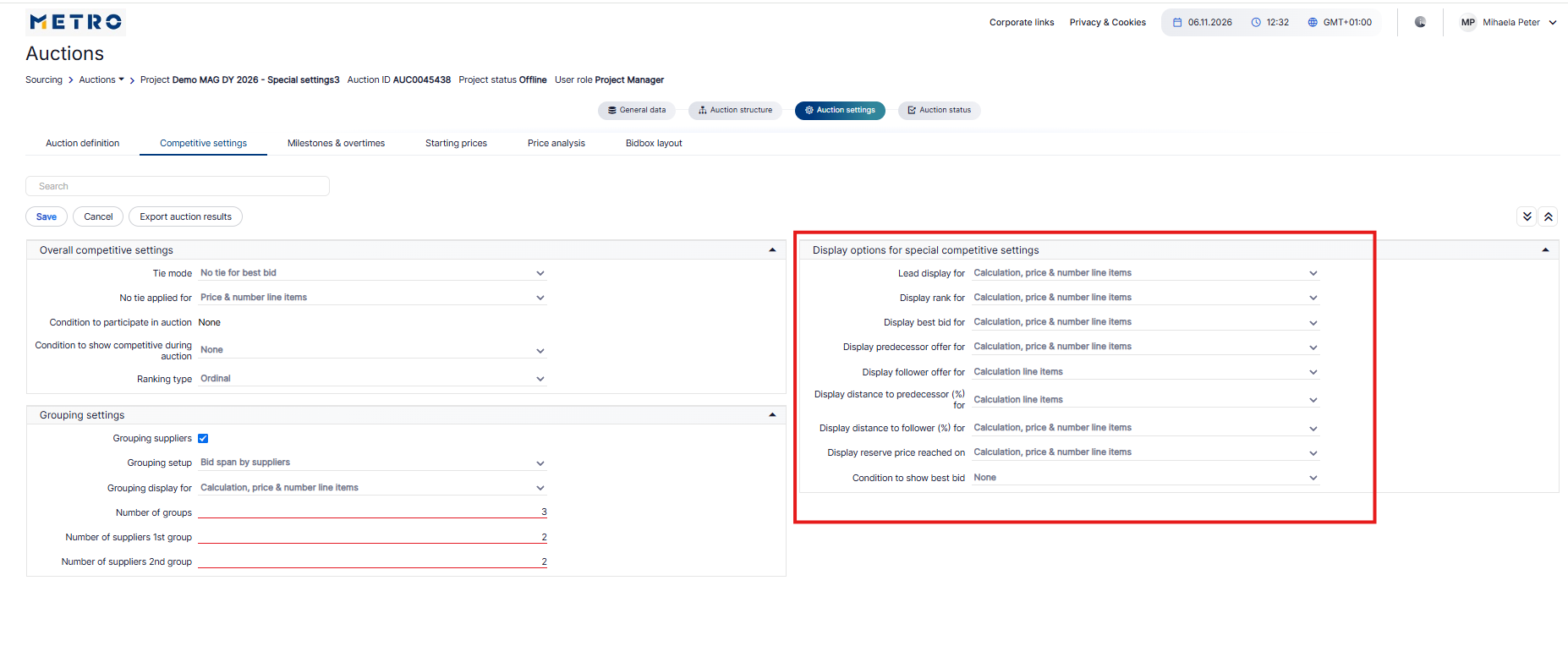
| Display option | Description | When to use / Comment |
|---|---|---|
| Calculation line items | The selected competitive information is available only for Calculation positions. | Use this option when suppliers should receive competitive feedback only for an overall or calculated result, rather than for each individual Price or Number position. |
| Calculation, Price & Number line items | The selected competitive information is available for Calculation, Price and Number positions. | Use this option when suppliers should receive more detailed position-level competitive feedback, for example a separate rank or lead indication for individual articles. |
Example: Display Rank
If Display rank for = Calculation line items is selected, a supplier may see the overall calculated result as Rank 2 without receiving a separate rank for each Price or Number position. If Calculation, Price & Number line items is selected, rank can also be displayed for the individual Price and Number positions.
BidBox Layout
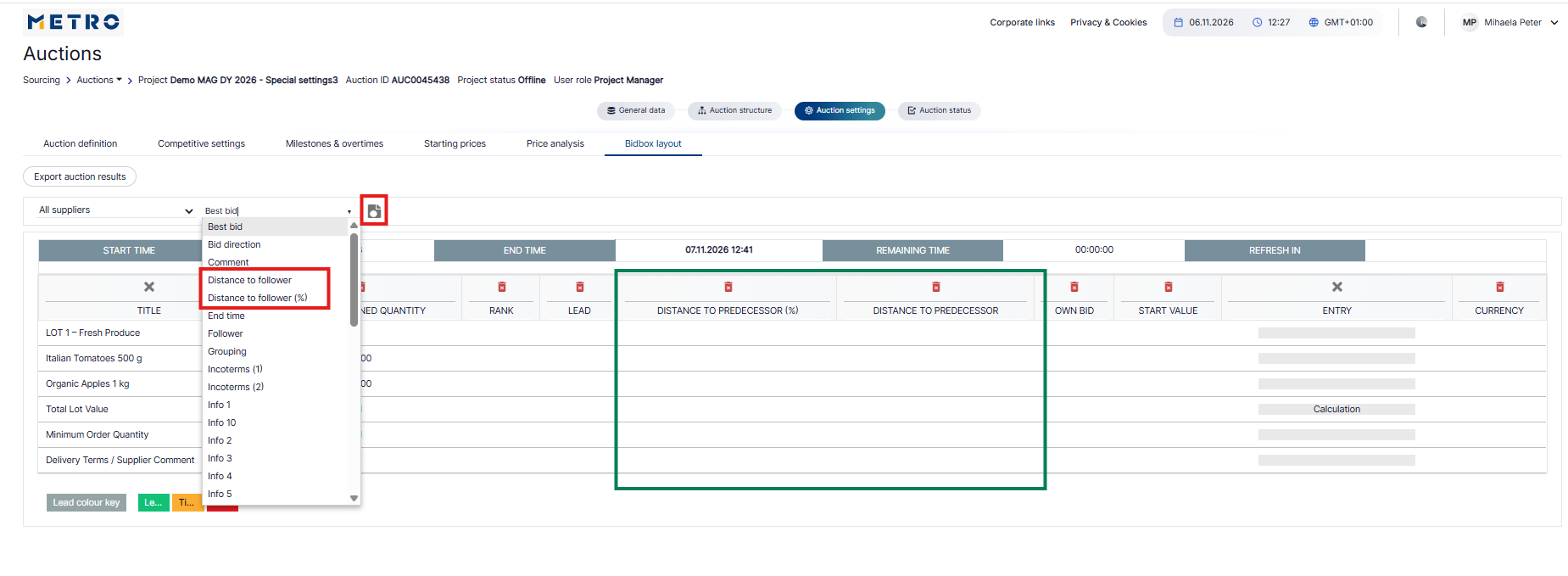
Competitive Settings determine for which position types competitive feedback is available. BidBox Layout determines which corresponding columns are visible to suppliers.
Depending on the auction configuration, columns such as Rank, Lead, Best Bid, Predecessor Offer, Follower Offer, Distance to Predecessor (%), and Distance to Follower (%) can be added to or removed from the supplier view.
Important: First configure the availability of the competitive feedback under Competitive Settings. Then use BidBox Layout to define which of the corresponding columns suppliers can see.