Use the Access Management page to maintain your suppliers' access to various data in SCOT. You can grant or revoke rights for your suppliers, at account/supplier number level, for:
- Order Forecast
- Sales Forecast
- Sales Forecast Split
- Forecast Exchange
- Lost Sales Opportunity
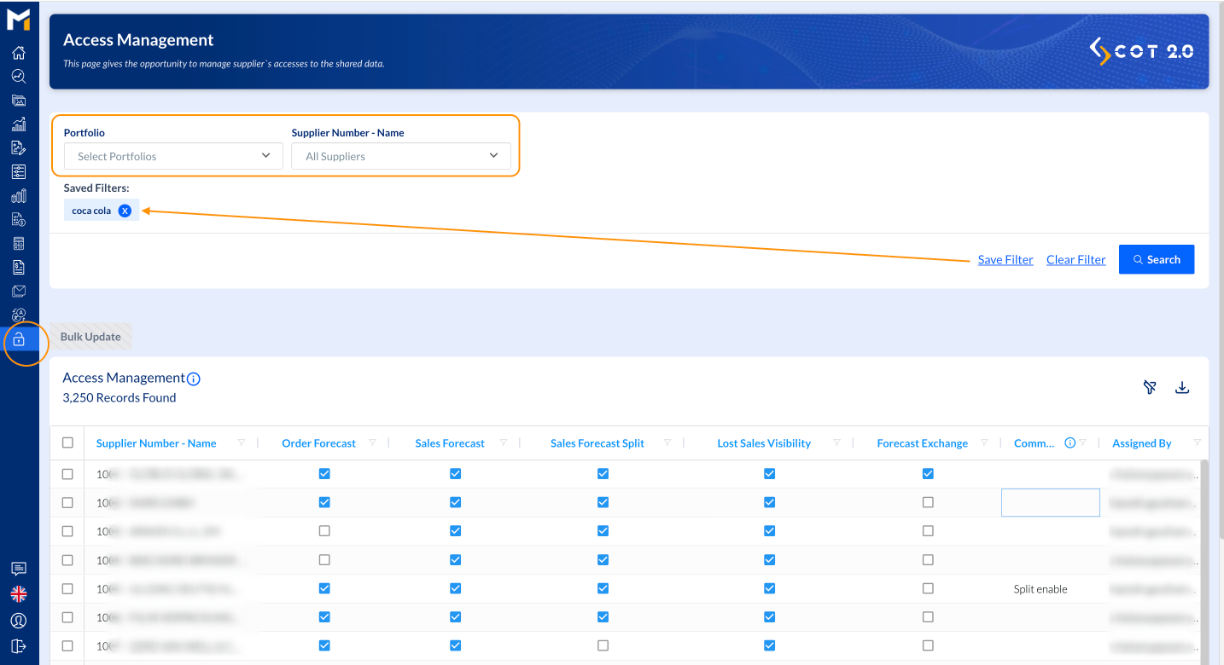
Click on the Padlock icon in the left-side menu to open the Access Management page.
Use the two filters - Portfolio and Supplier Number-Name - to narrow down results.
You can save your most frequently used filter for a quicker access when you need to use them again. They will appear under the Saved Filters section. Use Clear Filter to remove the present filters and start a new search.
Filtering in the Access Management grid
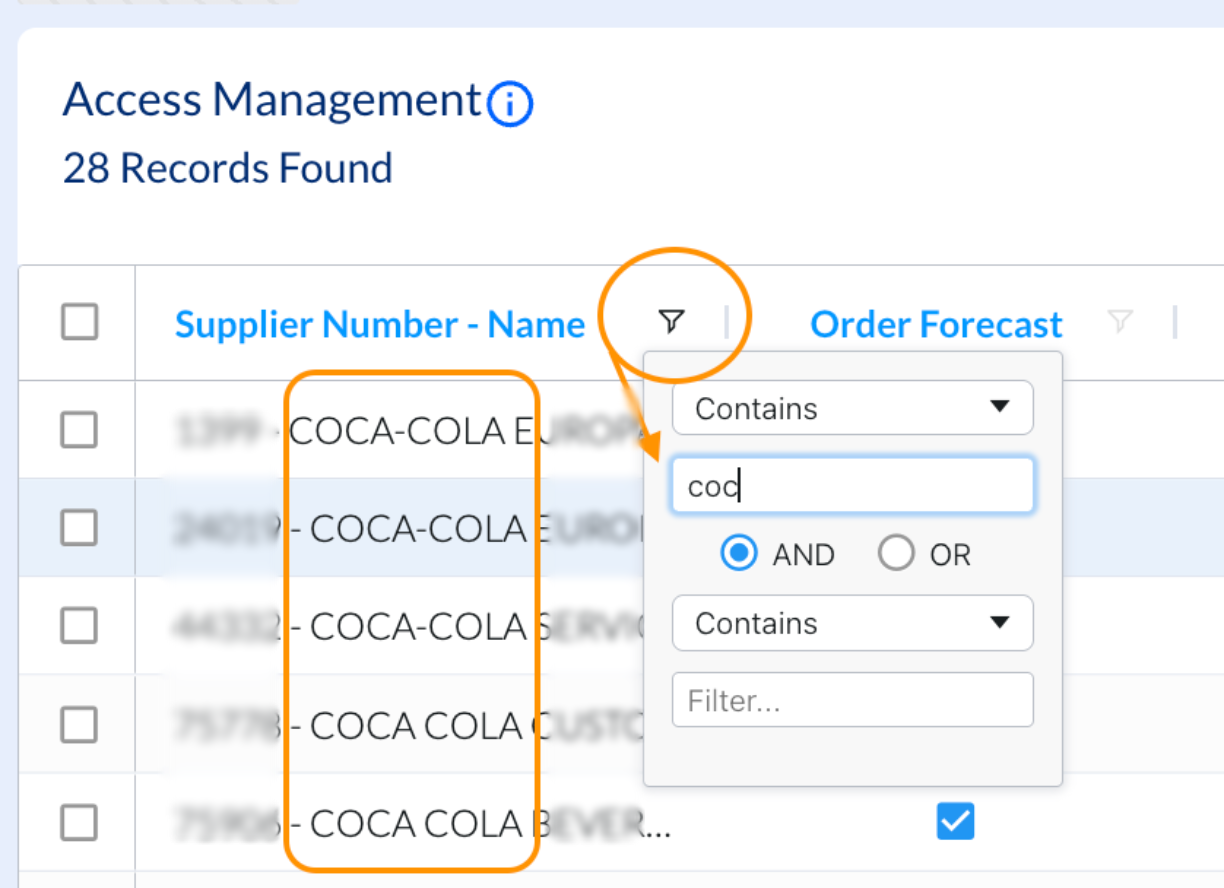
In addition to the Portfolio and Supplier filters on top of the page, you also have the possibility to filter data on the Access Management grid header level.
Click the Filter icon on top of the column in which you want to make your selection. For example, for Supplier Number - Name, you can enter part of the supplier number or part of the supplier name. The content of the grid is narrowed down immediately. You can then proceed to further refine your results by using let's say the Forecast Exchange filter, set if to False and see suppliers for which this access is disabled. And you can enable it if needed.
Using the grid header filters is a very quick and convenient way to visualize only a specific selection in your grid and to set the access rights to suppliers as per your needs.
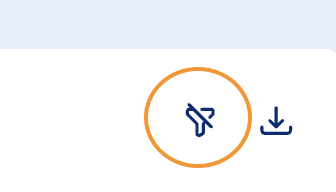
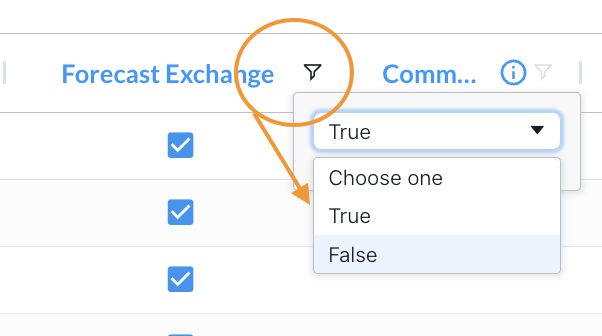 When you need to clear all grid header filters, simply click on the Filter Disabling icon at the upper right corner of the grid.
Enable/disable access at supplier account level
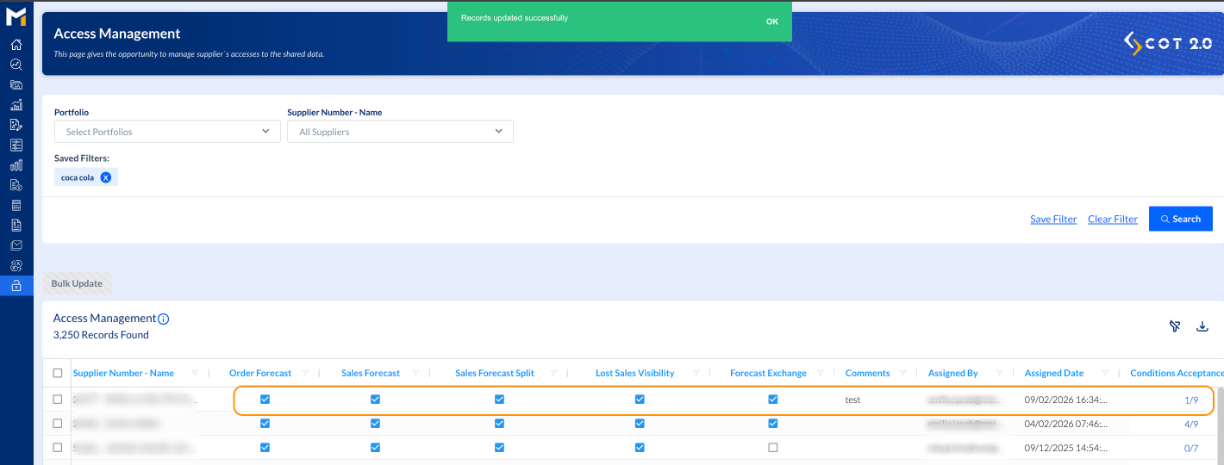
Once you have the needed selection in the grid, you can enable and/or disable access to various data in SCOT by simply checking and/or unchecking the boxes next to the suppliers' accounts.
IMPORTANT! Please note Order Forecast access must be enabled for a supplier before you can enable the Forecast Exchange access as well.
If needed, add a comment to note down why the access was enabled or disabled.
Once you uncheck or check an access box and add comments, the Assigned By and Assigned Date will get updated with your username and current time.
Condition Acceptance section refers to the number of users from that supplier who accepted the Forecast Sharing disclaimer terms. For example, if a supplier has three user accounts and only one user accepted the terms, you'll see 1/3.
Enable/disable access in bulk
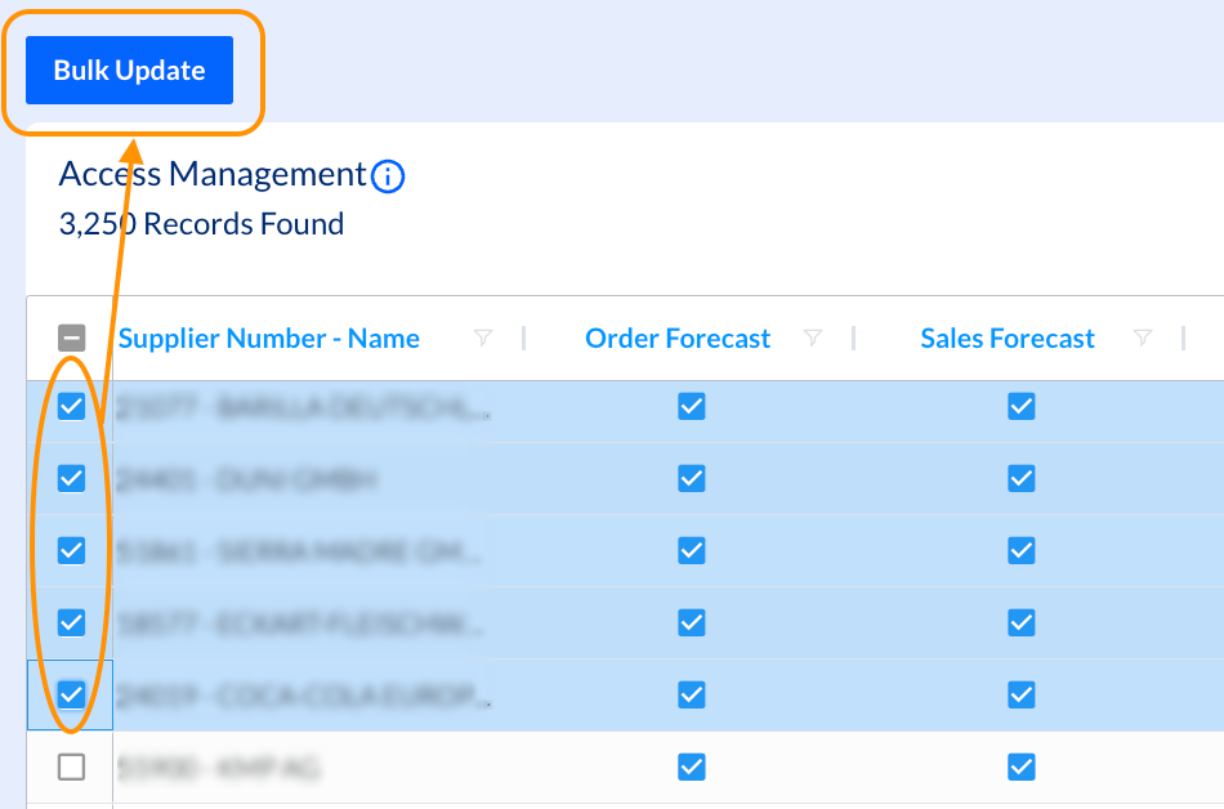
Select the needed supplier accounts by checking the boxes in front of each record.
Click on the Bulk Update button on top of the grid.
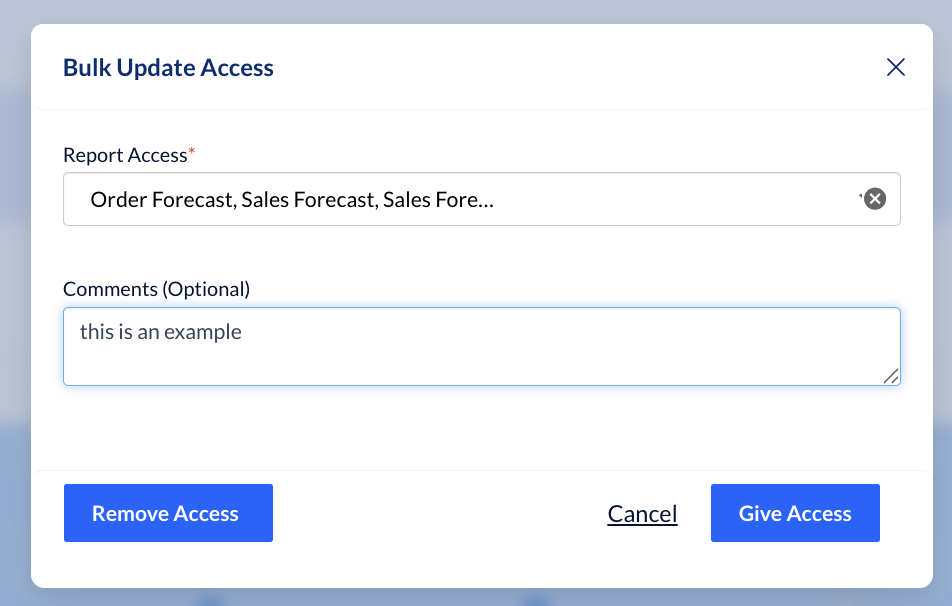
A pop-up window shows up. Under Report Access, select the data sections to which you wish to enable/disable access. Add your Comments if needed. Click on Give Access or Remove Access, depending on the situation.
IMPORTANT!
Give Access
You can use this button to provide the selected suppliers with the accesses only mentioned in the Report Access field. For instance, if a Supplier ‘A’ has access for Order Forecast access, but if you select Supplier ‘A’ during the Bulk Update and select Sales Forecast in the Report Access field, then Supplier ‘A’ will be provided Sales Forecast access, but will be revoked of his default Order Forecast access. So, it is imperative to select all the applicable accesses for a supplier before selecting the Give Access button.
Remove Access
You can use this button to revoke selective accesses (mentioned in Report Access field) to selected suppliers. For instance, if a Supplier ‘A’ has access for Order Forecast and Sales Forecast accesses, but if you select Supplier ‘A’ during the Bulk Update and select Sales Forecast in the Report Access field, and click Remove Access button, then the Supplier ‘A’ will only have Order Forecast access. So, it is important to select only the accesses that you do not wish for the supplier to have before selecting Remove Access button. In case nothing is selected in drop-down and Remove Access button is clicked, all accesses will be removed.
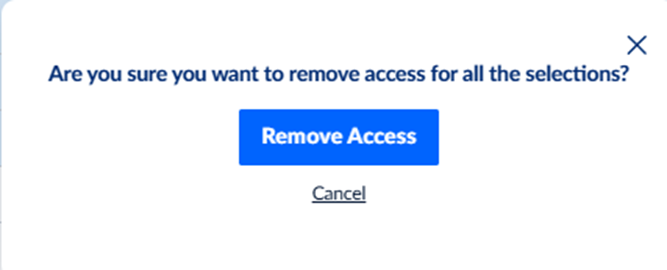
A confirmation query appears once you select Give/Remove Access to make sure your selection is correct. Confirm and the changes are done.
IMPORTANT!
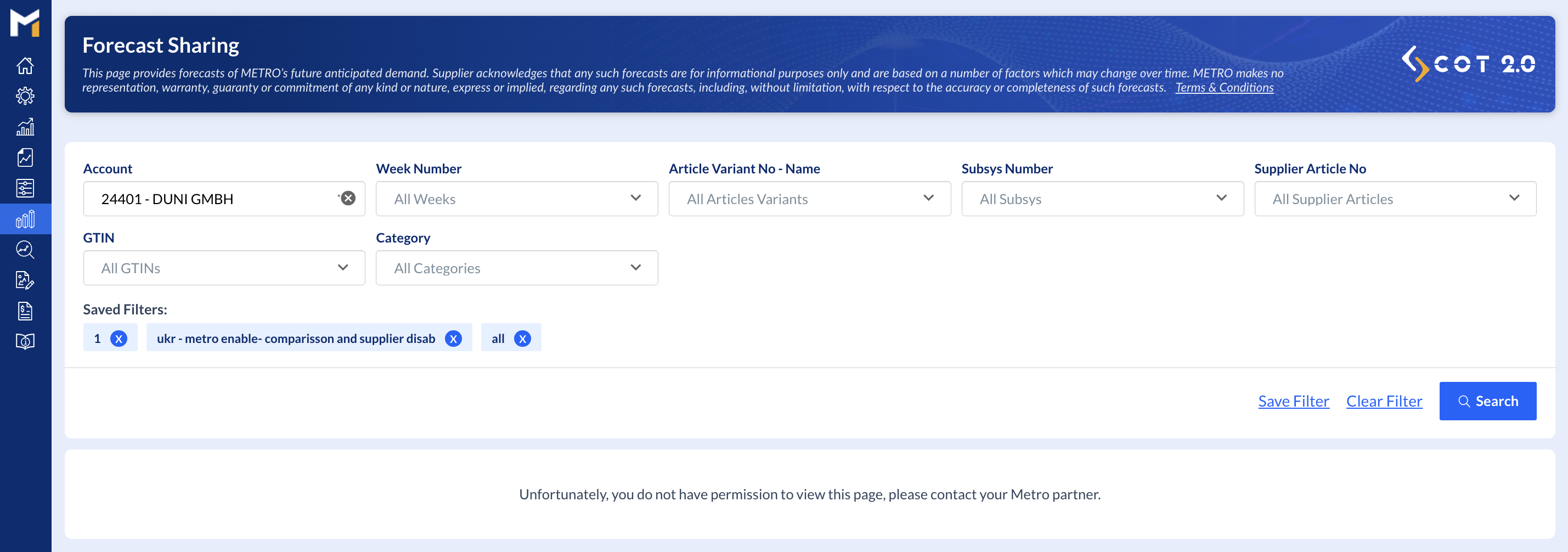
In case no Forecast Sharing access is enabled for a Supplier, the following message is shown to them when they access the Forecast Sharing section: "Unfortunately, you do not have permission to view this page, please contact your Metro partner."
This way, suppliers know that they can contact you for the needed access to Forecast Sharing data.