
This guide explains how to quickly export article quantities by country from the Article List in eSourcing. Follow the steps below to access the list, select the relevant articles, and download the Pooling Sheet report.
1. Open the Article List
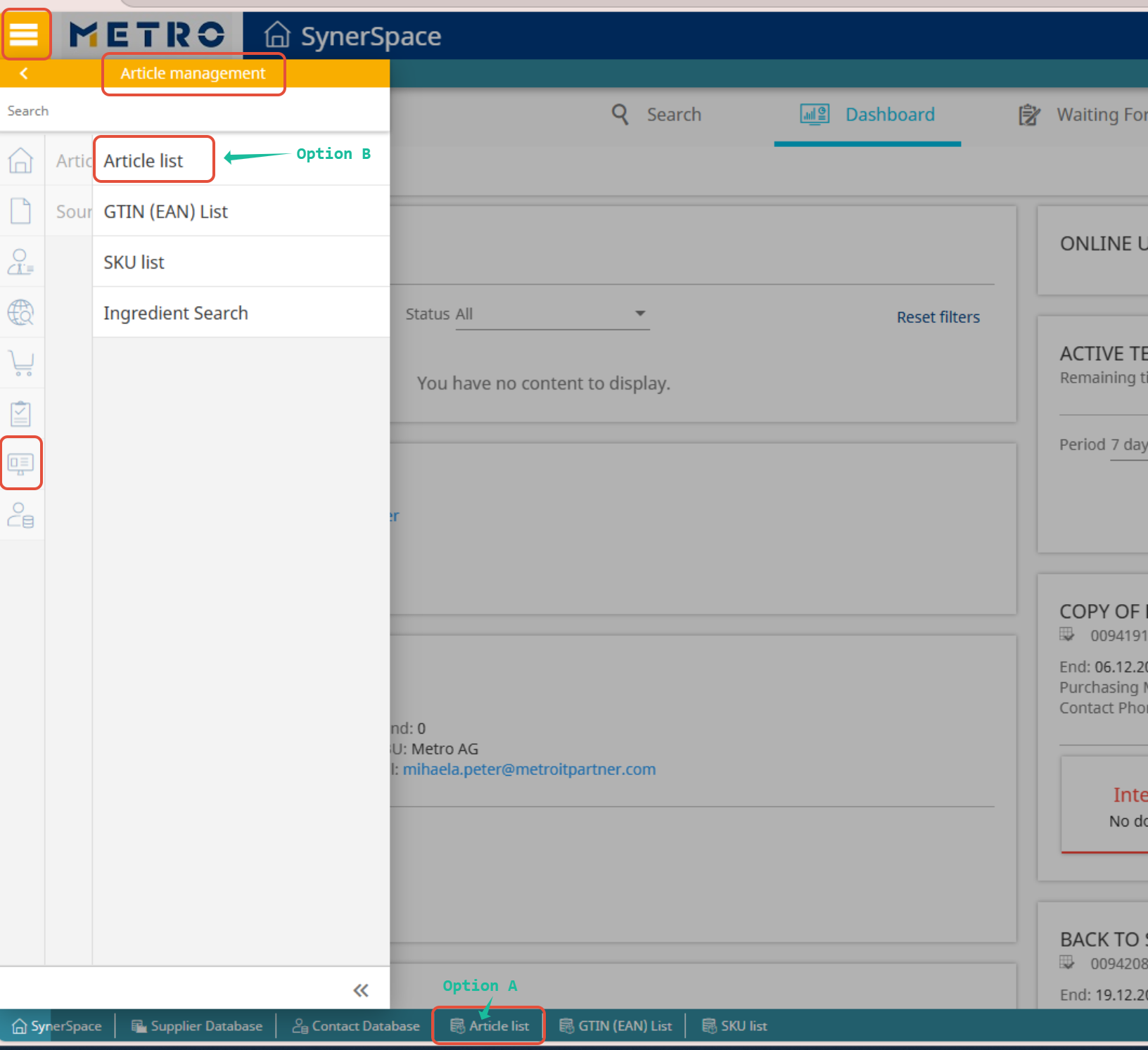
You can access the Article List in two ways:
Option A: From the Favorites Bar
- Click Article List directly from your Favorites
Option B: From the Menu
- Go to Content Library
- Select Article Management
- Click Article List
2. Search for the Project ID
Once the Article List is open:
- Enter the Project ID for which you want to export the quantities by country.
- The related articles will be displayed.
3. Select Articles and Generate the Pooling Sheet
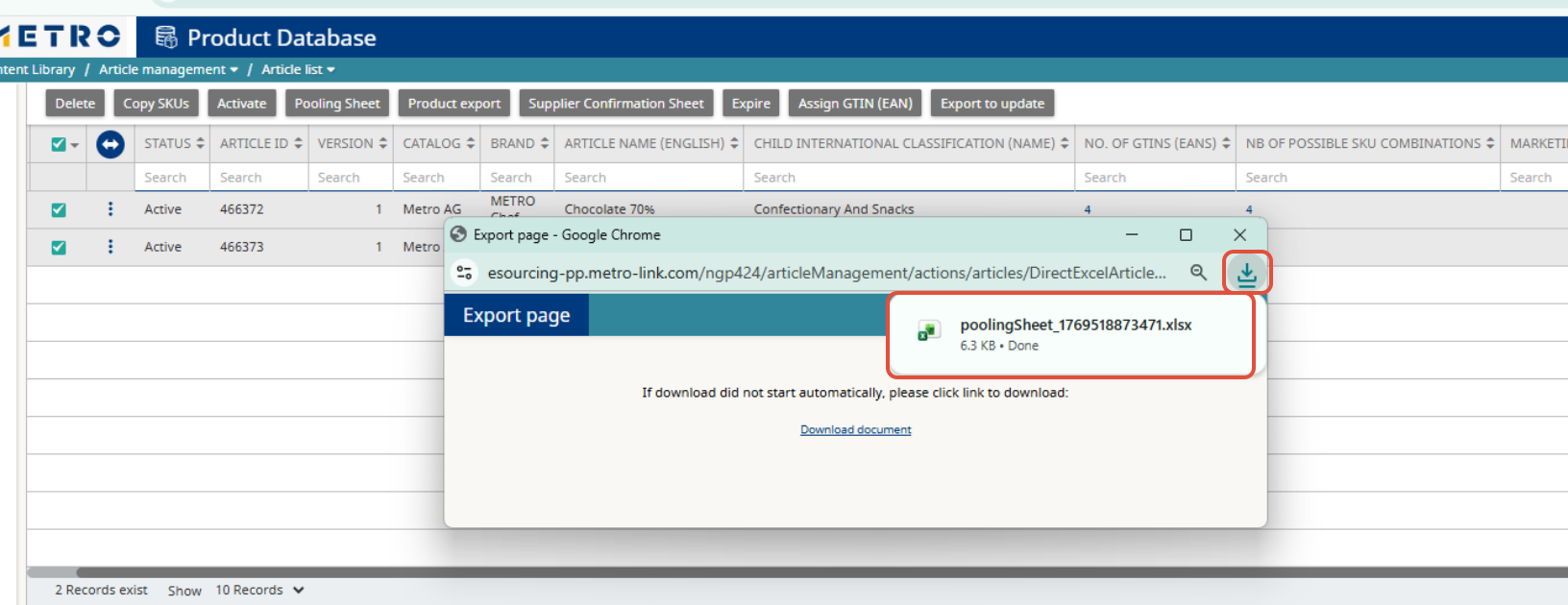
- Select all articles you want included in the export.
- Click the Pooling Sheet button.
Note: The Pooling Sheet button becomes available only after selecting at least one article.

4. Download and Open the File
- A pop‑up window will appear.
- The download will start automatically.
- Once downloaded, click on the file to open the report.

Important Note
To have values/quantities displayed in the Pooling Sheet file, the articles must have been awarded, meaning they must be in status Active or Expired.
For any further questions do not hesitate to contact us.