
This guide explains how to properly follow up on an auction while it is Online or in Bidding status.
1. Check Supplier GC (General Conditions) Acceptance — Recommended Step
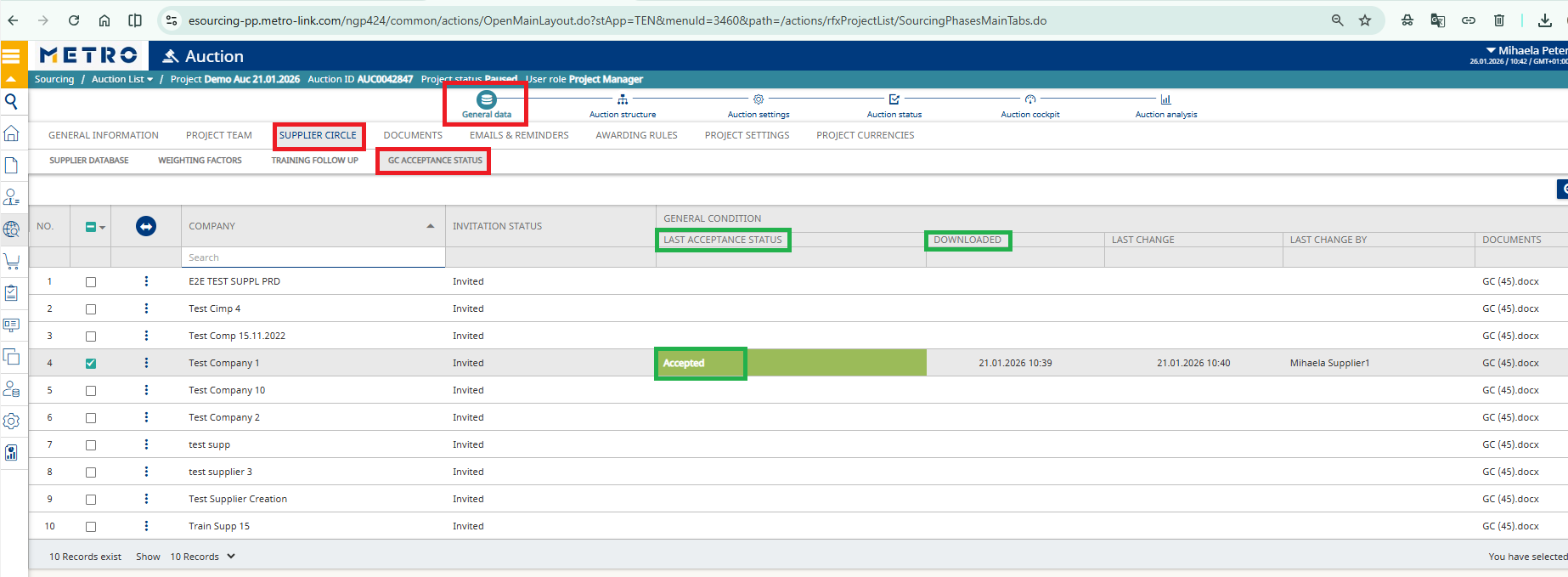
Before the bidding phase begins, the Project Leader can verify whether suppliers have accepted the General Conditions documents.
Accepting the GC is mandatory for suppliers to participate in the auction.
By checking this in advance, you can identify which suppliers are fully ready and which ones may still need support, allowing you to follow up with them if necessary.
How to Check GC Acceptance
- Open the Auction.
- Navigate to:
General Data → Supplier Circle → GC Acceptance Status
This page provides an overview of each supplier’s acceptance status.
Important Notes
- If multiple documents are marked as GC, suppliers must download and accept all of them.
- If a supplier accidentally refuses, they can reopen the auction and accept again from the GC Acceptance page.
- Buyers / Project Leaders must NOT accept GC on behalf of suppliers
Auction Cockpit Overview
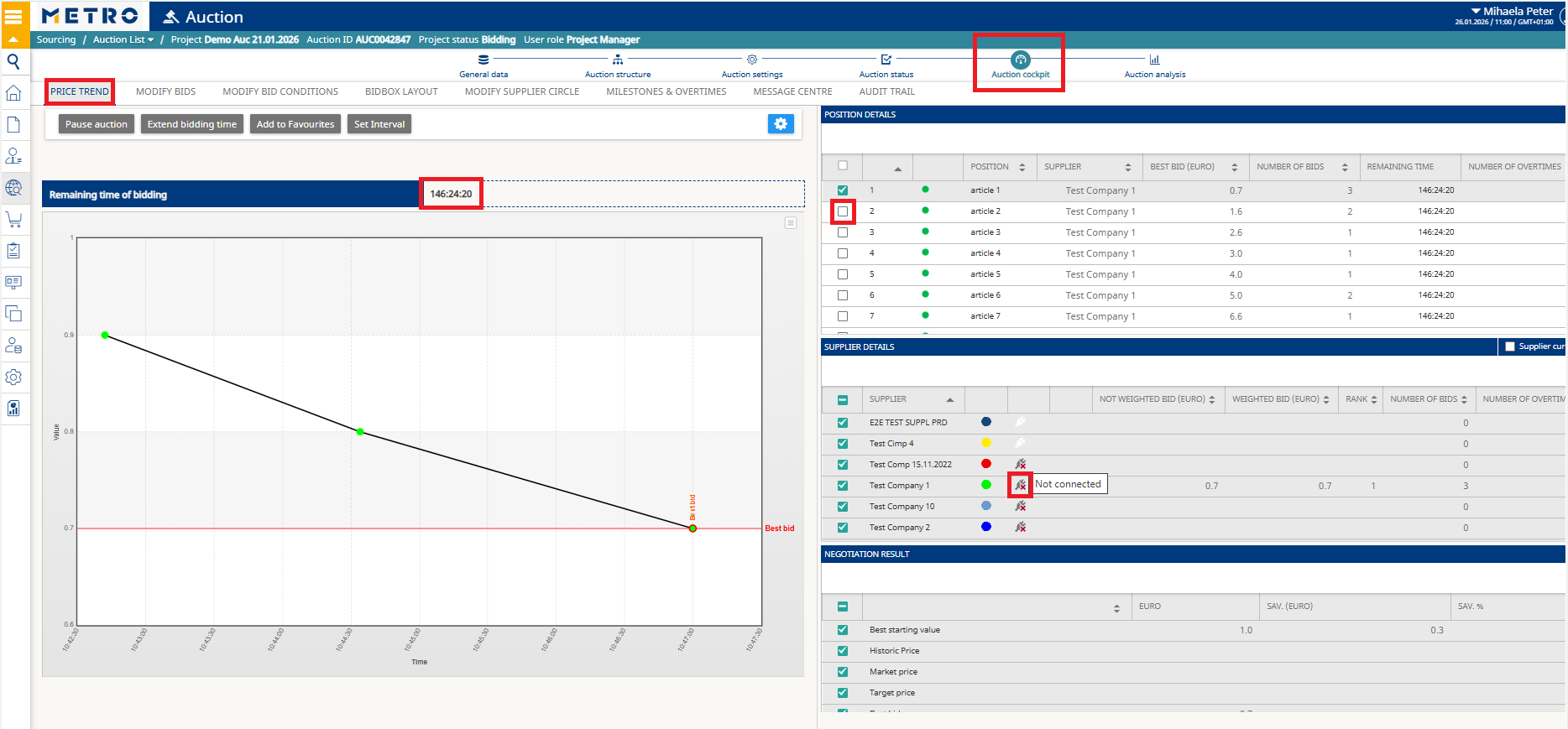
Monitor Price Trends
View live bid progress for the active article.
Graphs update automatically when suppliers place new bids.
Switch Between Articles
Under Position Details, you can move from one article to another to display the corresponding price trend graph.
View Supplier Status
Under Supplier Details, hover with your mouse over the status icon to see each supplier’s bidding status (e.g., connected to the Bidbox, Connected to the auction, Not connected).
Alternative View: Auction Analysis
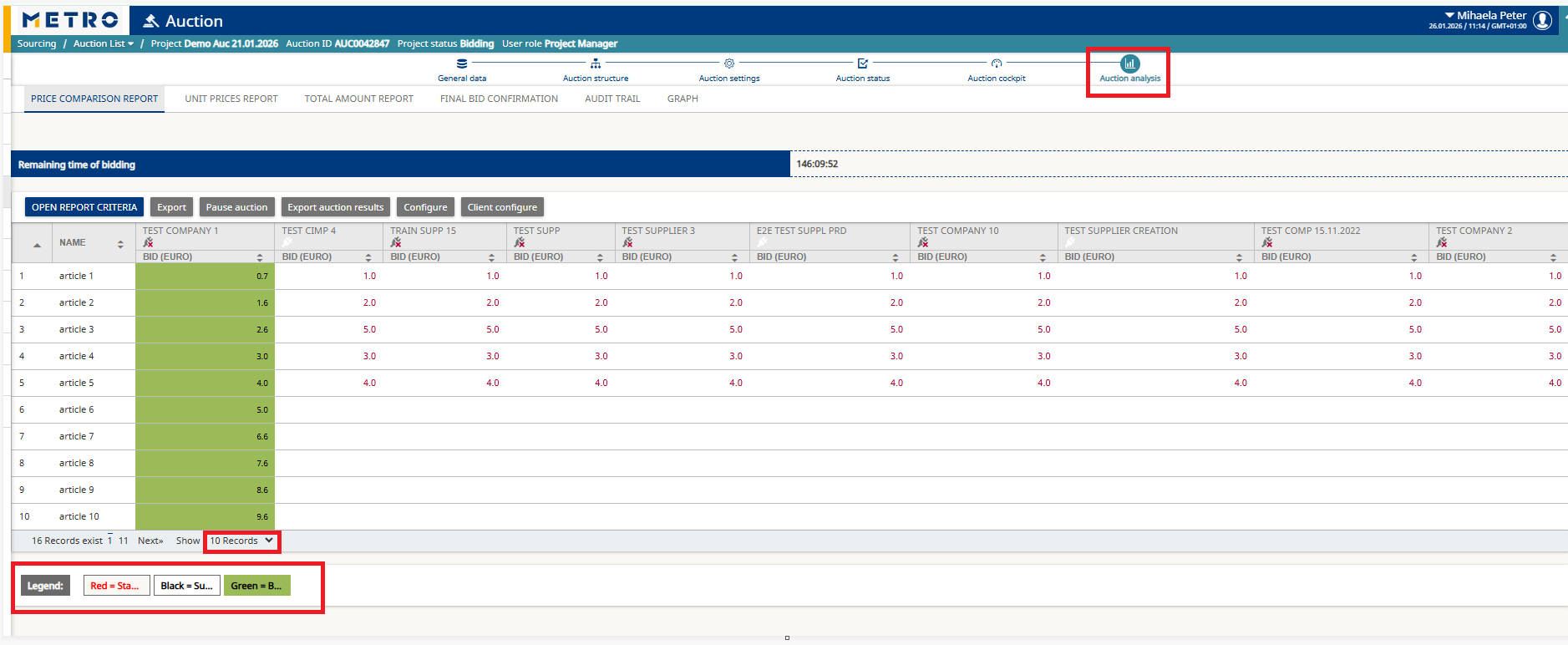
You can also monitor bidding from Auction Analysis, which provides a full overview across all articles in one consolidated view.
Color Coding
- Green → Best price
- Black → Supplier has submitted a bid, but it is not the best
- Red → Starting price or no bid received
This view is especially useful when managing multi‑article auctions, as it allows you to compare supplier performance at a glance.
3. Pause the Auction
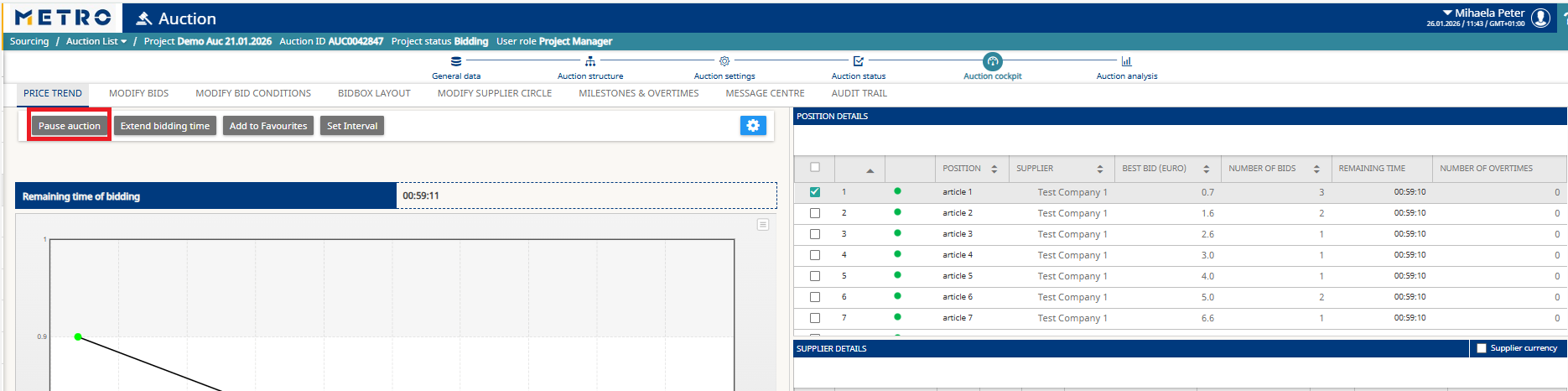
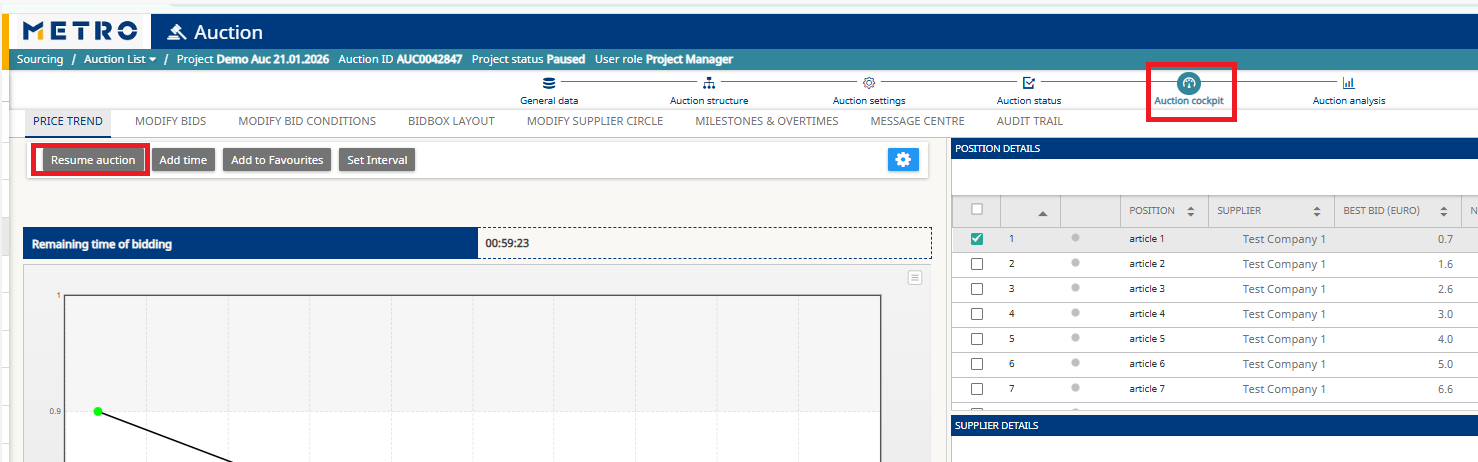
During the Bidding phase, a Pause option becomes available in the Auction Cockpit.
As the Project Leader, you can pause the auction at any time when necessary—for example:
- If one or more suppliers are experiencing technical issues
- If a change or correction must be made
- If the auction is taking longer than expected and you wish to continue the next day
To pause, click Pause Auction in the Auction Cockpit.
Resume the Auction
If the auction has been paused, click Resume Auction to restart it.
Important Notes
Pausing the auction does not reduce or consume bidding time.
The system automatically extends the auction end time by the exact duration it remained paused.
Example: If the remaining time when you paused was 50 minutes, and you kept the auction paused for several minutes, once you resume, the remaining time will still be 50 minutes.
The end time is not fixed or relevant. A Japanese auction ends only when all positions are completed and no supplier continues to confirm bids. This means the auction closes automatically once all suppliers stop confirming participation for each position.
4. What You Can Modify During the Bidding Phase
During the bidding phase, only certain modifications are allowed, and these depend on the auction type.
Modify Bids — Available for English and Dynamic Auctions Only
If a supplier submits an incorrect price, you can delete the bid so the supplier can submit a new one.
How to Modify Bids
- Open the Auction Cockpit.
- Pause the auction.
- Navigate to Modify Bids.
- Select the article/element where the incorrect bid was placed.
- Delete the bid for the corresponding supplier.
- Resume the auction once the correction is complete.
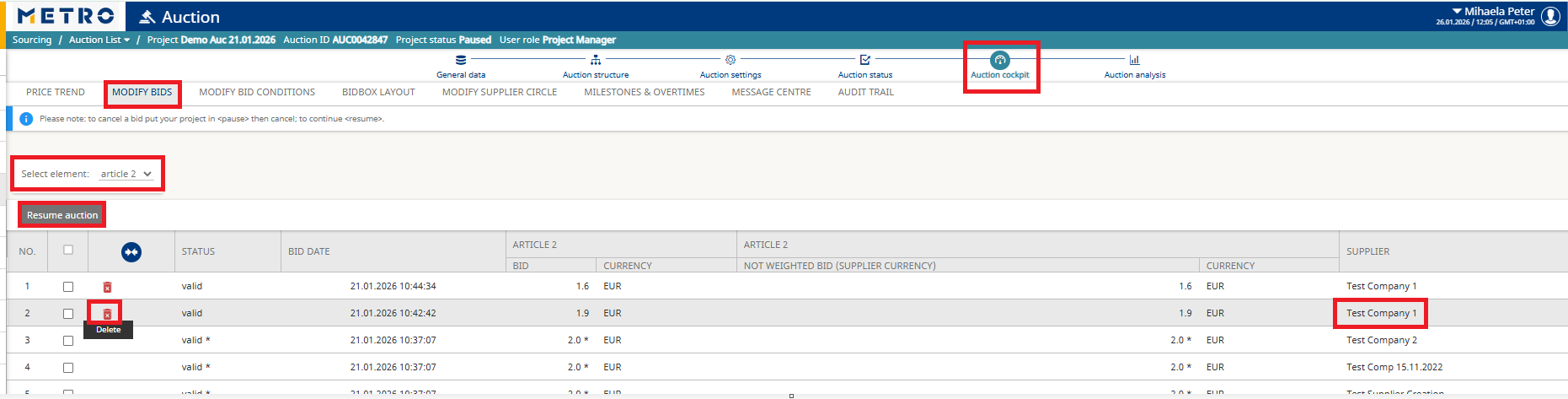
The deleted bid will remain visible but marked Invalid, and the supplier can place a new bid.
Modify bid conditions - Available for English and Dynamic Auctions Only
How to Modify Bid Conditions
- Go to the Modify Bid Conditions tab.
- Click on the line (article/position) where you want to make changes.
- Update any of the following fields as needed:
- Number of decimals
- Minimum bid change
- Maximum bid change
- Click Save to apply the changes.
These updates take effect immediately and do not interrupt the bidding process.

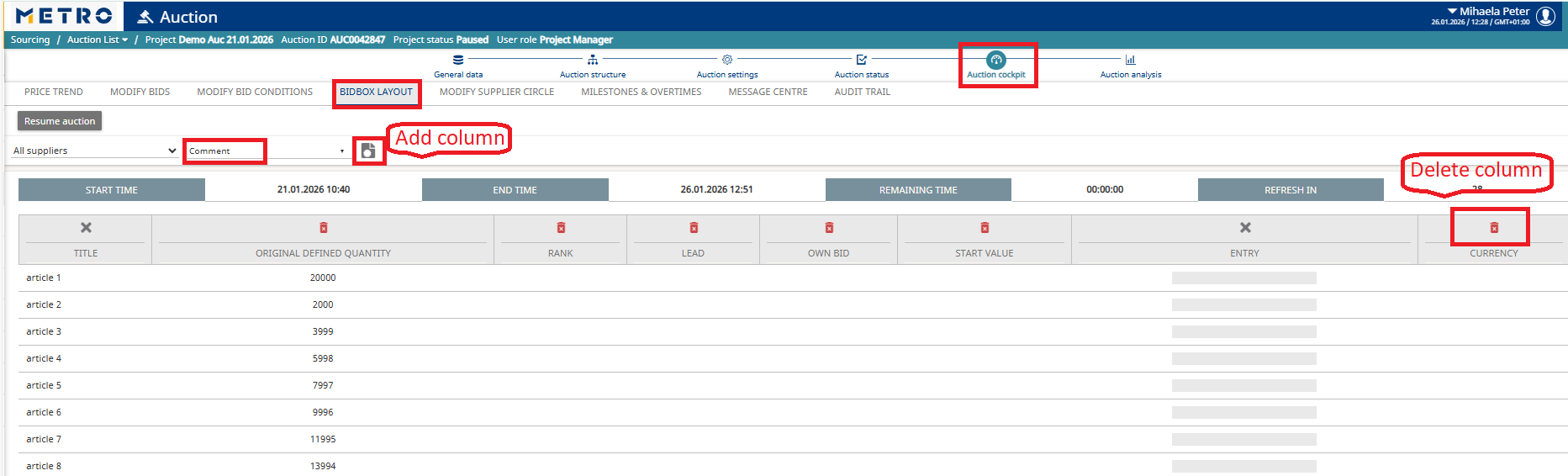
The Bid Box Layout allows you to control exactly what suppliers see during the auction.
Show or Hide Columns
You can customize the supplier view by showing or hiding specific columns such as Best Bid, Rank, Comments, etc —based on what you want suppliers to see.
Remove a Column
Click the Delete button to remove any column that should not be visible to suppliers.
Add a Column
Select a column from the list and click Add Column to make it visible for suppliers.
Important Note:
Be careful when adding columns.
Do not make visible any information you do not want suppliers to see, such as: Historical Price, Best Bid (in Dynamic Auctions), Number of active suppliers, etc..
Modify Supplier Circle — Valid for All Auction Types
During an auction, while the status is Online, Bidding, or Paused, you can still manage supplier participation directly from:
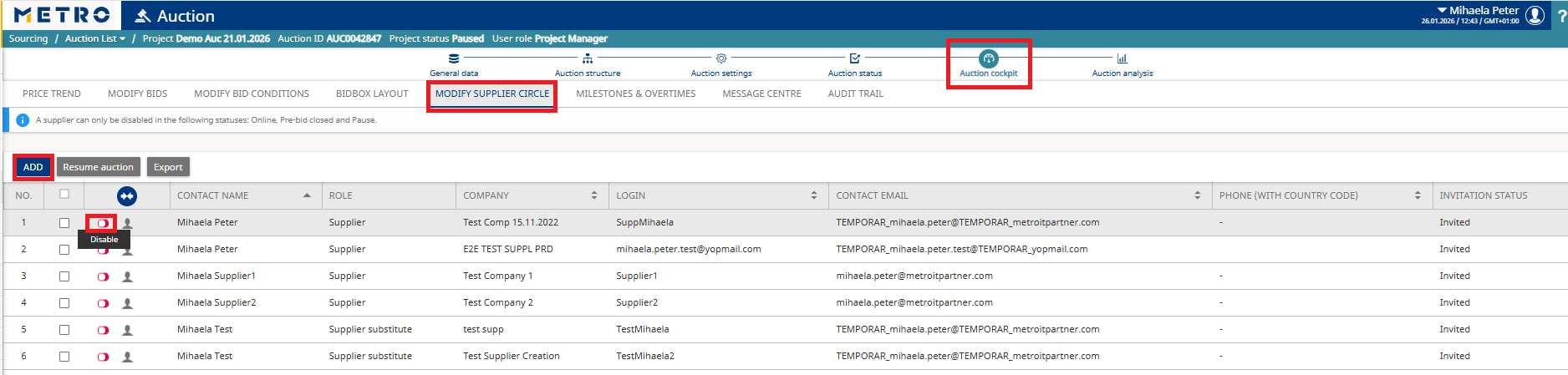
Auction Cockpit → Modify Supplier Circle
This allows you to either invite new suppliers or dismiss existing ones if needed.
Invite a Supplier - Click Add to invite a new supplier to the auction.
Dismiss a Supplier -Click Disable to remove a supplier from the auction.
- Important Note: Disabling one supplier user disables the entire supplier company. All users from that company will lose access.
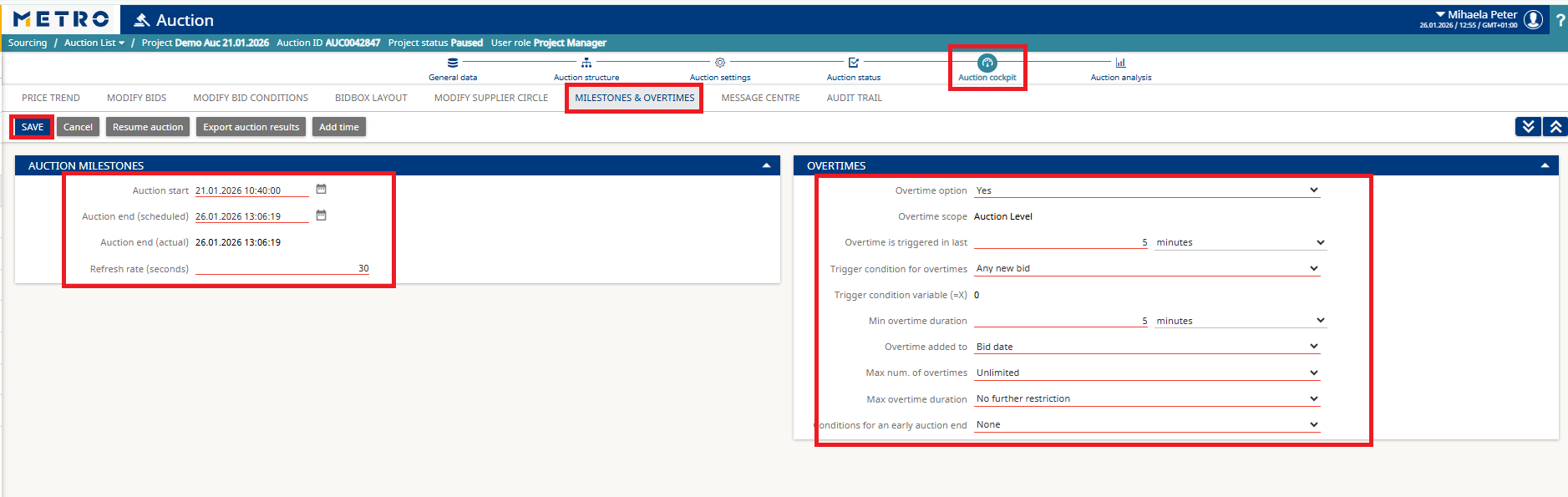
Modify Time Settings
During Online or Bidding status, you can update auction time settings via:
Auction Cockpit → Milestones & Overtimes
This allows you to modify:
- Start time
- End time
- Refresh rate
- Overtime settings (for Dynamic and English auctions)
How to Change Time Settings
- Open Milestones & Overtimes in the Auction Cockpit.
- Adjust the required fields..
- Update refresh rate or overtime rules if required.
After you finish updating the settings, click Resume Auction to continue the bidding process.
Change Starting Prices
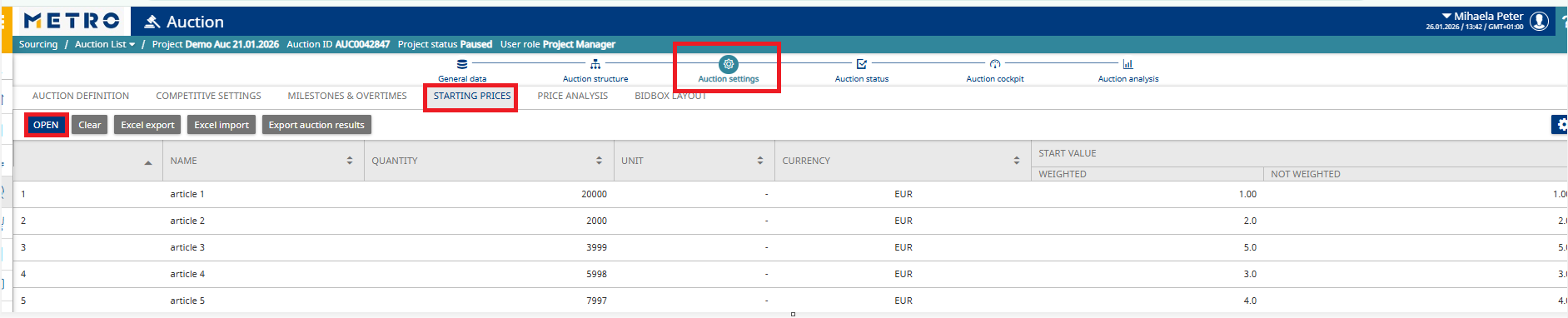
To update starting prices during an auction, follow these steps:
1. Pause the Auction - The auction must be paused before modifying starting prices.
2. Update the Starting Prices
- Go to Auction Settings → Starting Prices.
- Click Open to edit the values.
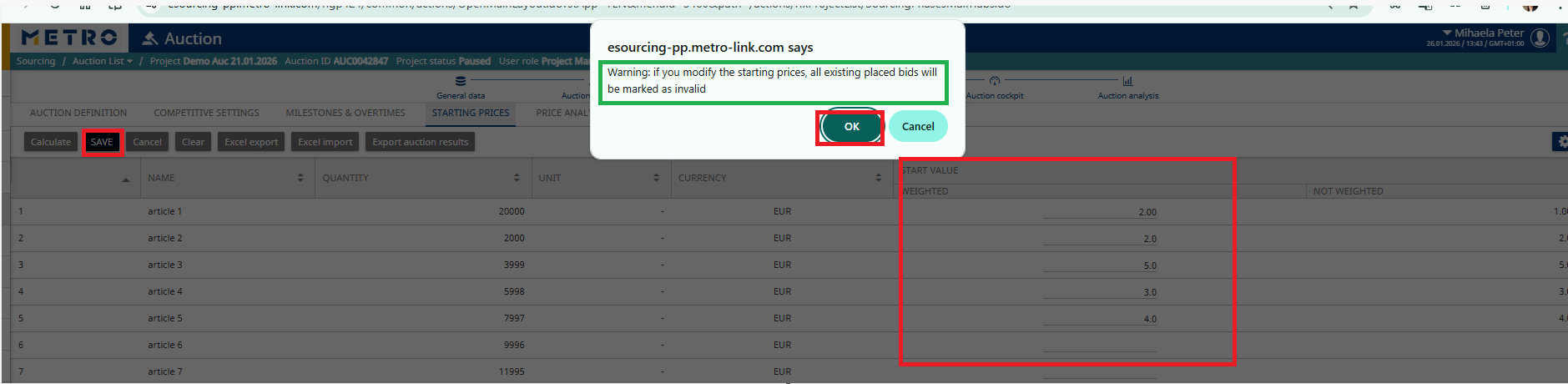
- Enter the new starting prices.
- Click Save to apply the changes.
Important Note : All previous bids will be automatically marked as Invalid once starting prices are changed.
3. Resume the Auction - Return to the Auction Cockpit and click Resume Auction to continue the bidding process.
Auction Reports
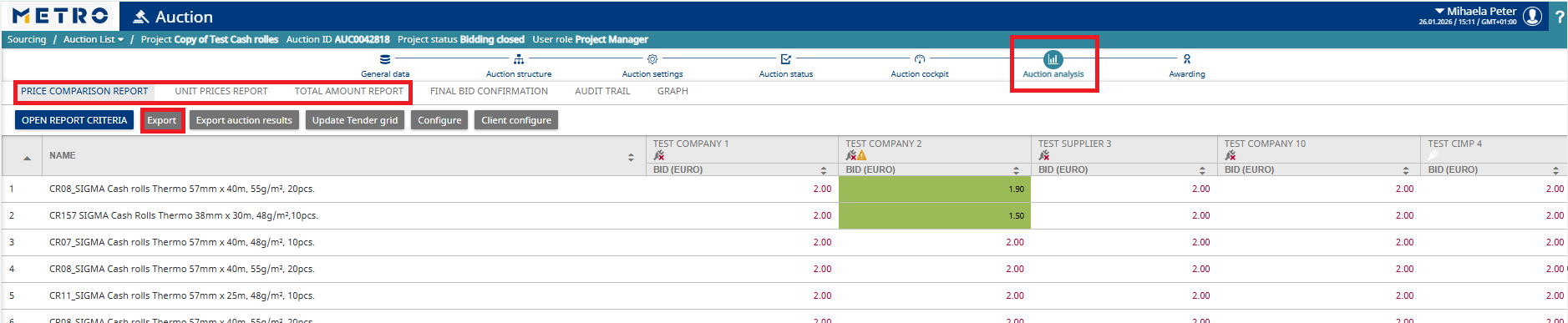
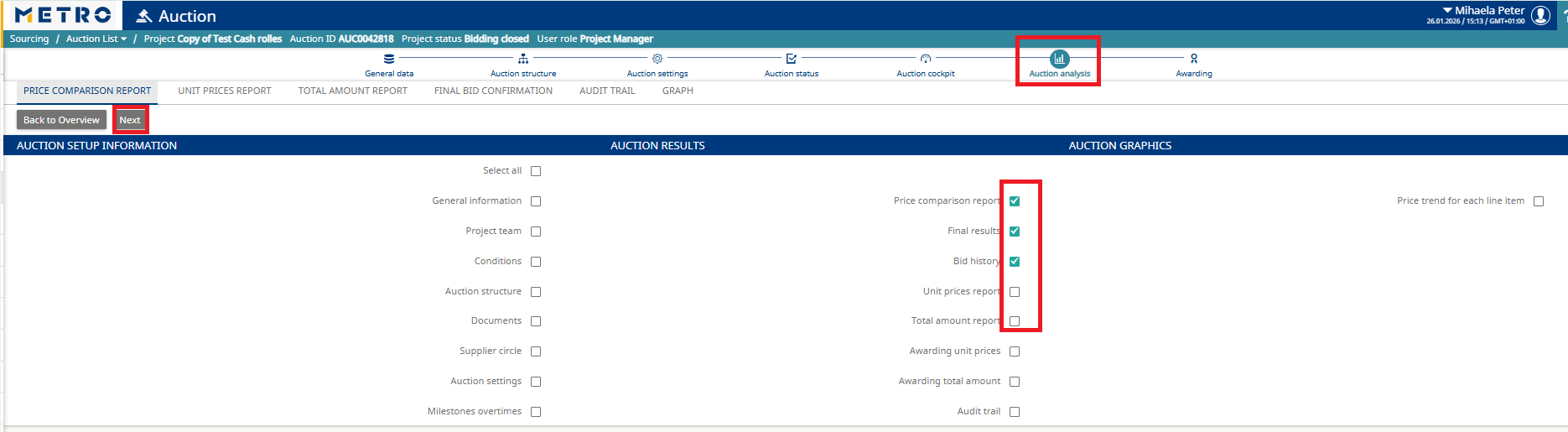
Once the bidding has closed, you can generate and export various reports to analyze auction outcomes. These reports are available under Auction Analysis
Available Reports
You can export several standard report types, including:
- Price Comparison Report
- Unit Price Report
- Total Amount Report
Exporting Custom Results
Alternatively, you can use Export Auction Results to customize the report content.
Simply select the specific information you want to include, and the system will generate a tailored report based on your selections.

For any further questions do not hesitate to contact us