
This guide explains how to award a Local Tender Project—that is, define the winning supplier for a project created using the Local Tender Template.
Prerequisites:
- The Demand Specification grid must have a status of Closed or In Analysis.
- Suppliers must be invited to the project.
Step-by-Step Process
Step 1: Access the Awarding Tab
- Open the Local Tender Project.
- Navigate to the Awarding tab.
- For better visibility, click the Wheel icon and select Show supplier name in all lines.
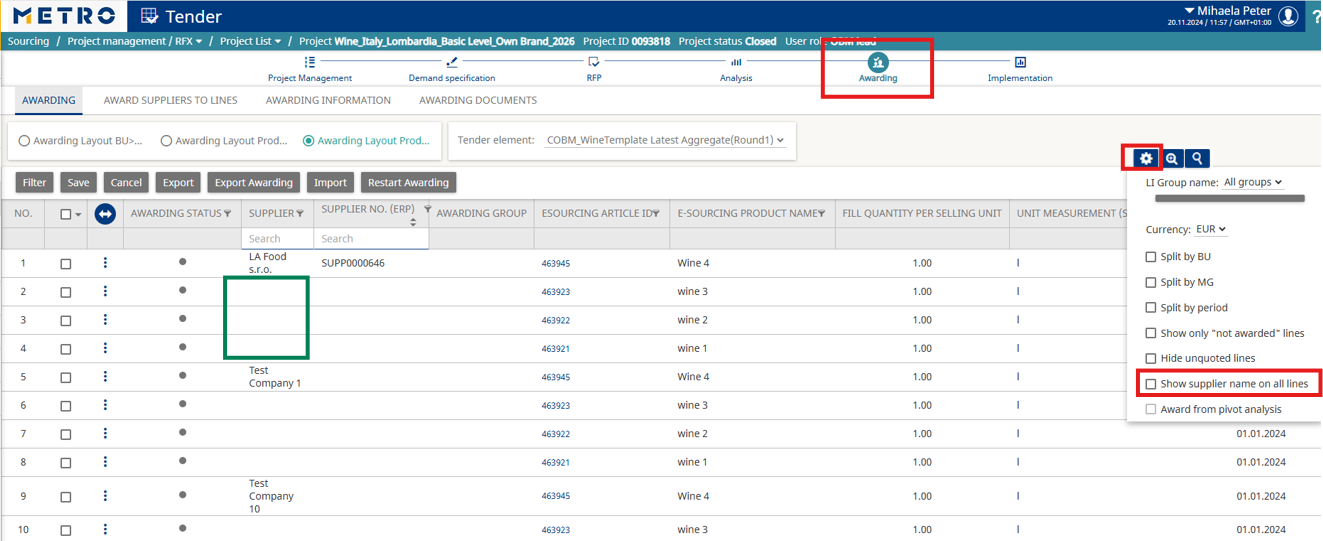
On this screen, you can:
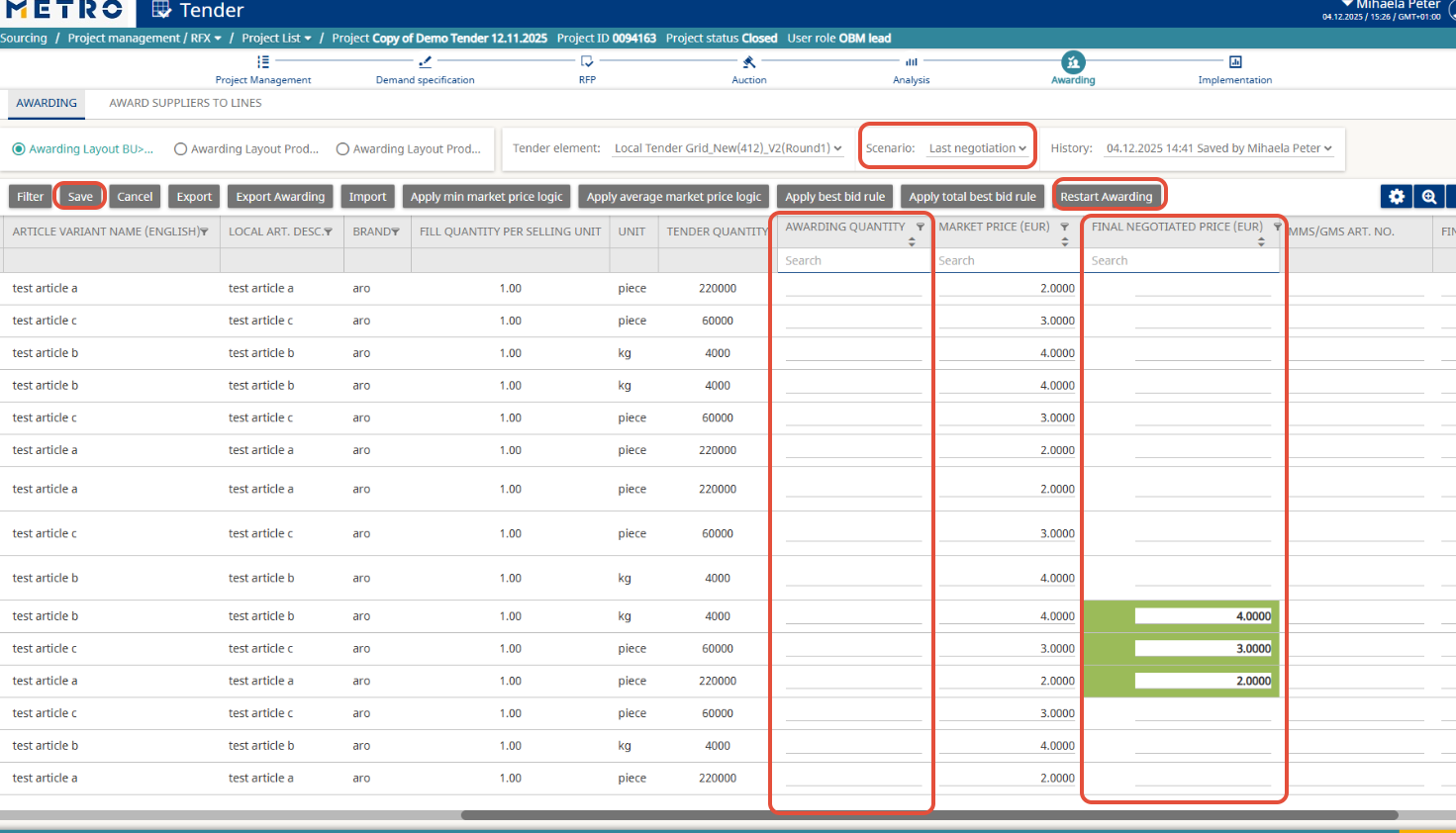
- See the prices provided by suppliers during the last negotiation (RFP or Auction).
- Edit or manually add a price if needed.
- Add the awarded quantity for each article/supplier that will be awarded.
- Click on Restart Awarding if, for some reason, you need to reset the values or if prices do not appear by default.
- Save if any changes were made to ensure updates are applied.
Step 2: Award Suppliers
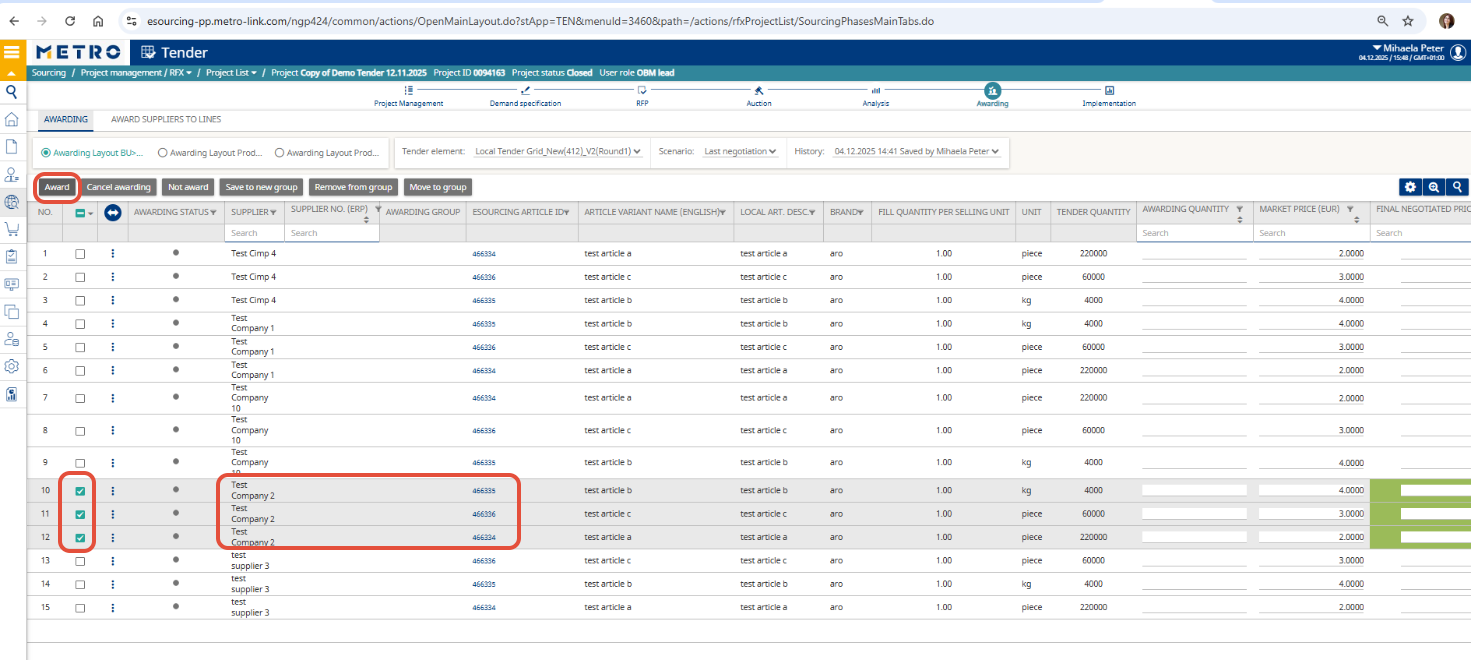
- Select the corresponding Supplier/Article and click Award.
- It is possible to award more than one supplier for the same Article ID if required.
- You can also use:
- Apply Best Bid Rule – to quickly select the supplier with the best price per line.
- Apply Total Best Bid Rule – to select the supplier with the best overall bid across all lines.
- After applying the rule or manual selection, click Award to confirm.

Hint: Use Export/Import for Bulk Awarding
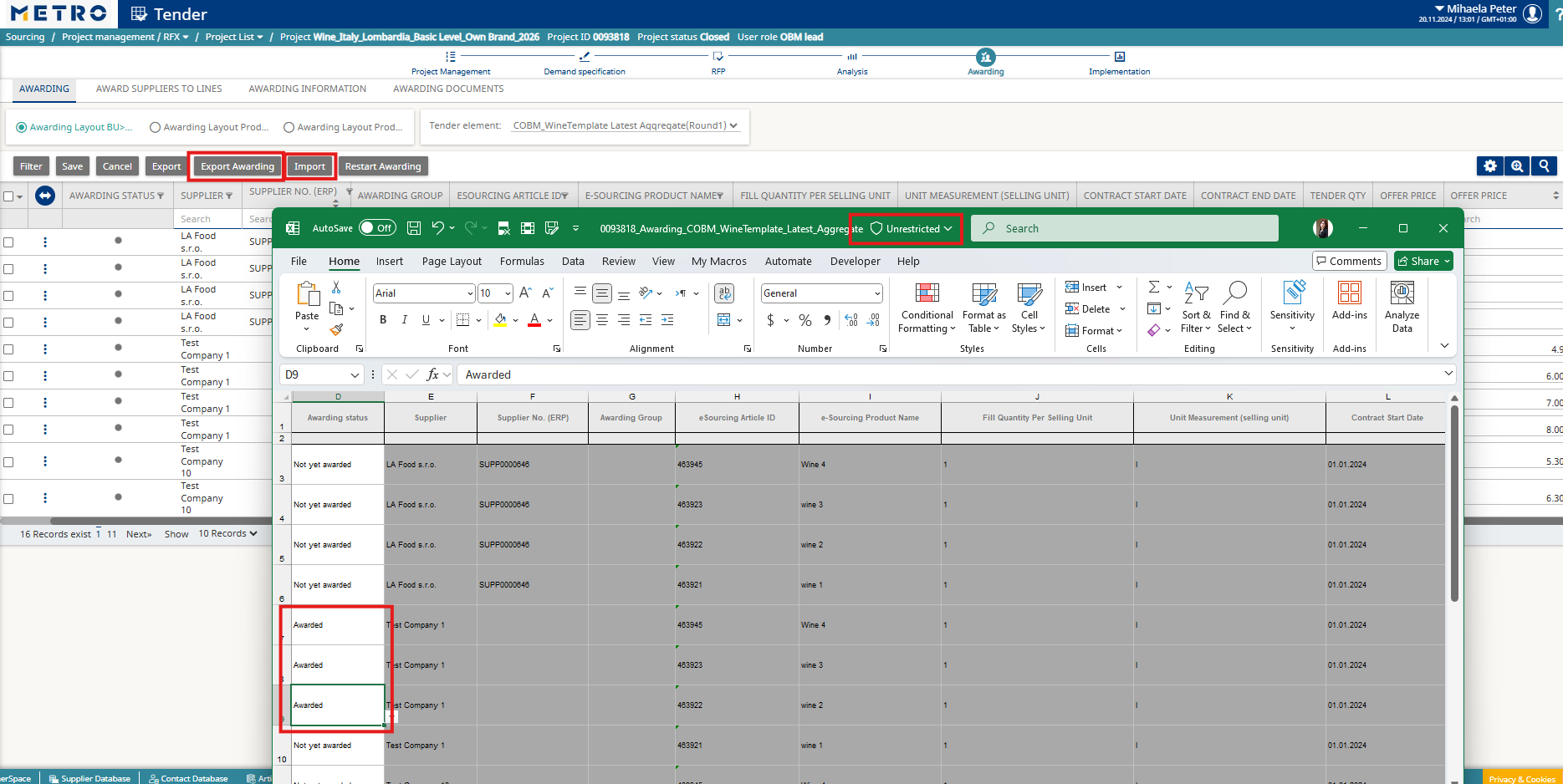
If there are many lines to award, you can use the Export and Import functionalities:
- Click Export Awarding and download the Excel file.
- In the first column of the Excel file, select the value Awarded for the supplier/article you intend to award.
- Save the file as Unrestricted.
- Click Import and upload the updated file to apply the awards.
Step 3: Finalize the Project
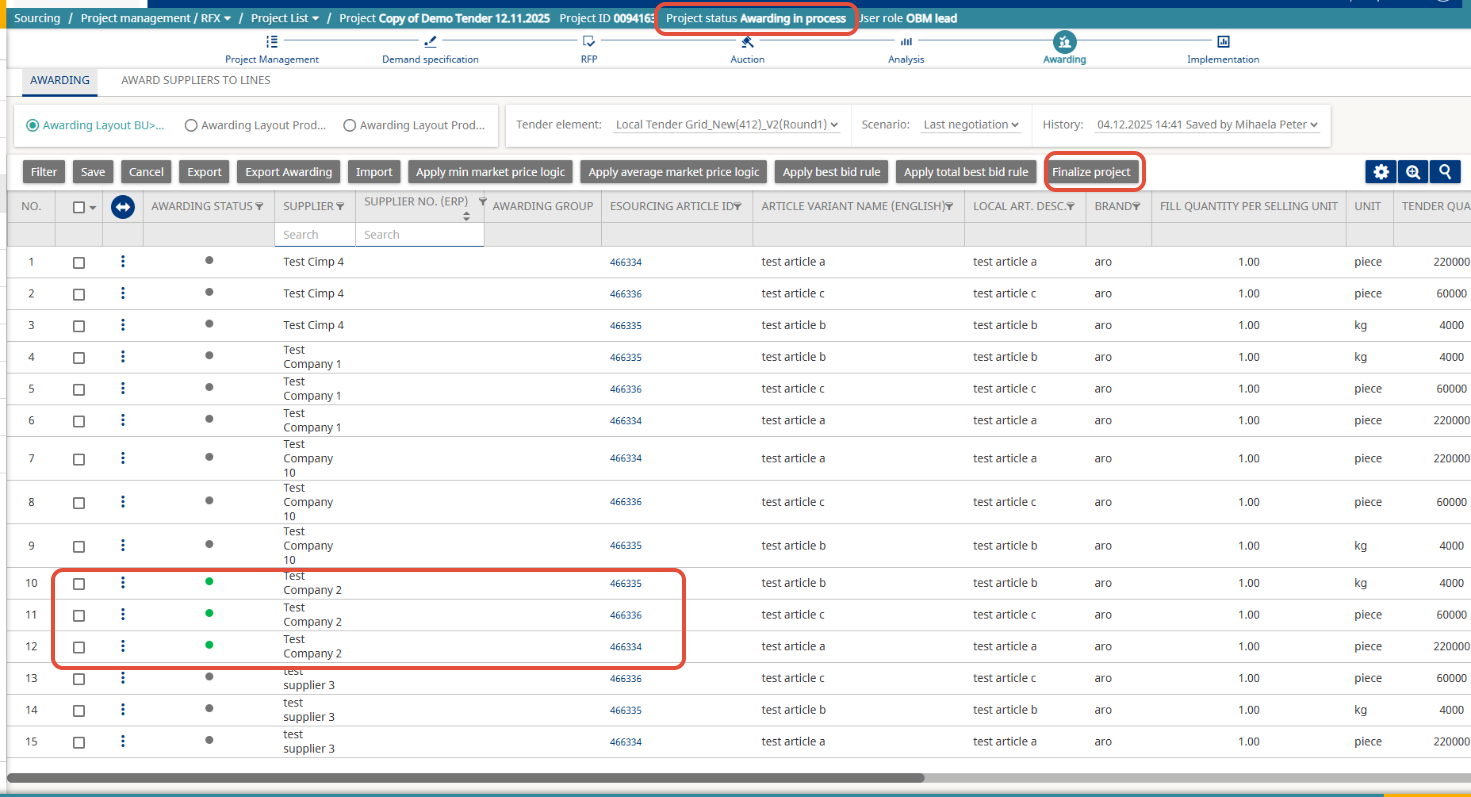
- Click Finalize Project to complete the process.
- The project can only be finalized if all articles are awarded to at least one supplier.
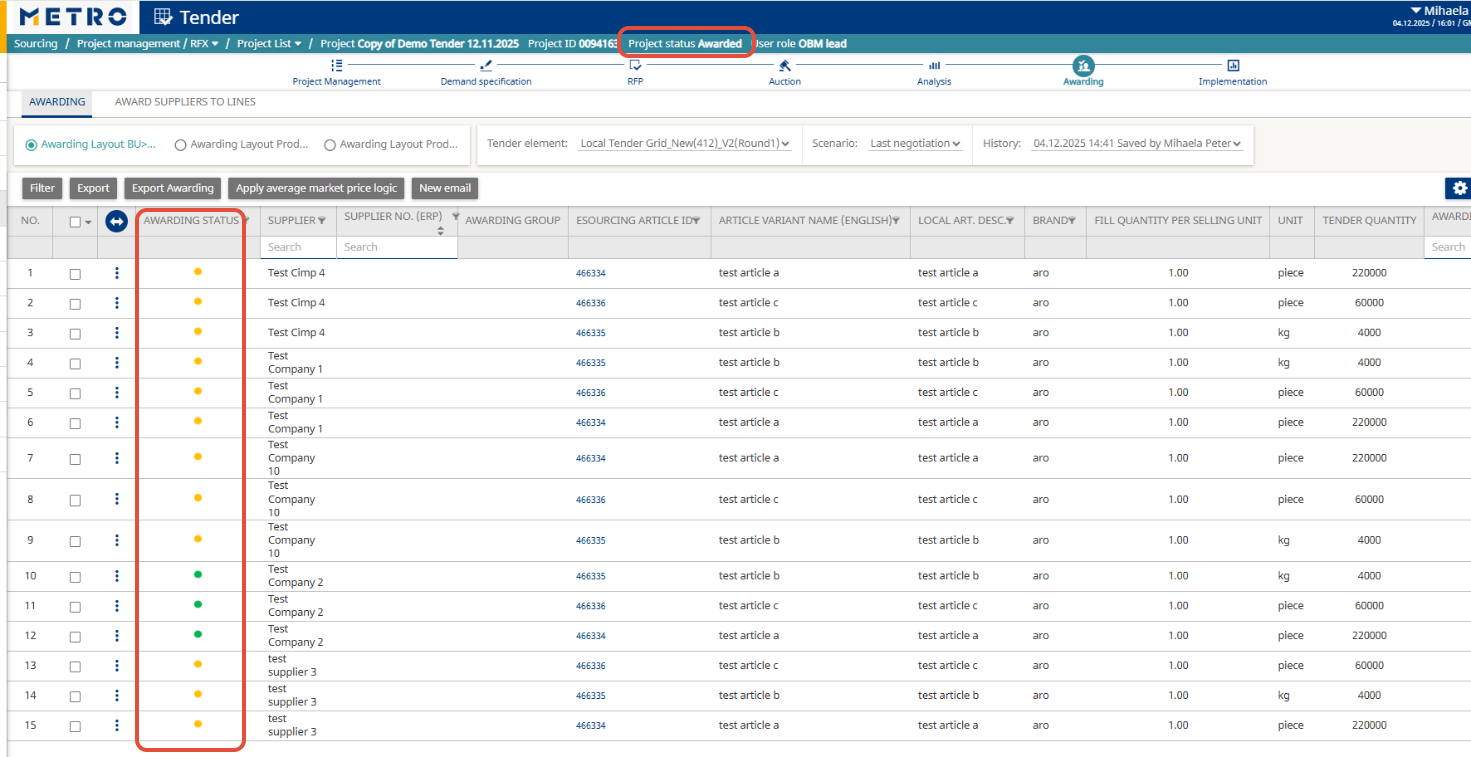
- Once finalized, the project status will change from Awarding in Progress to Awarded.
Optional : Notify Suppliers
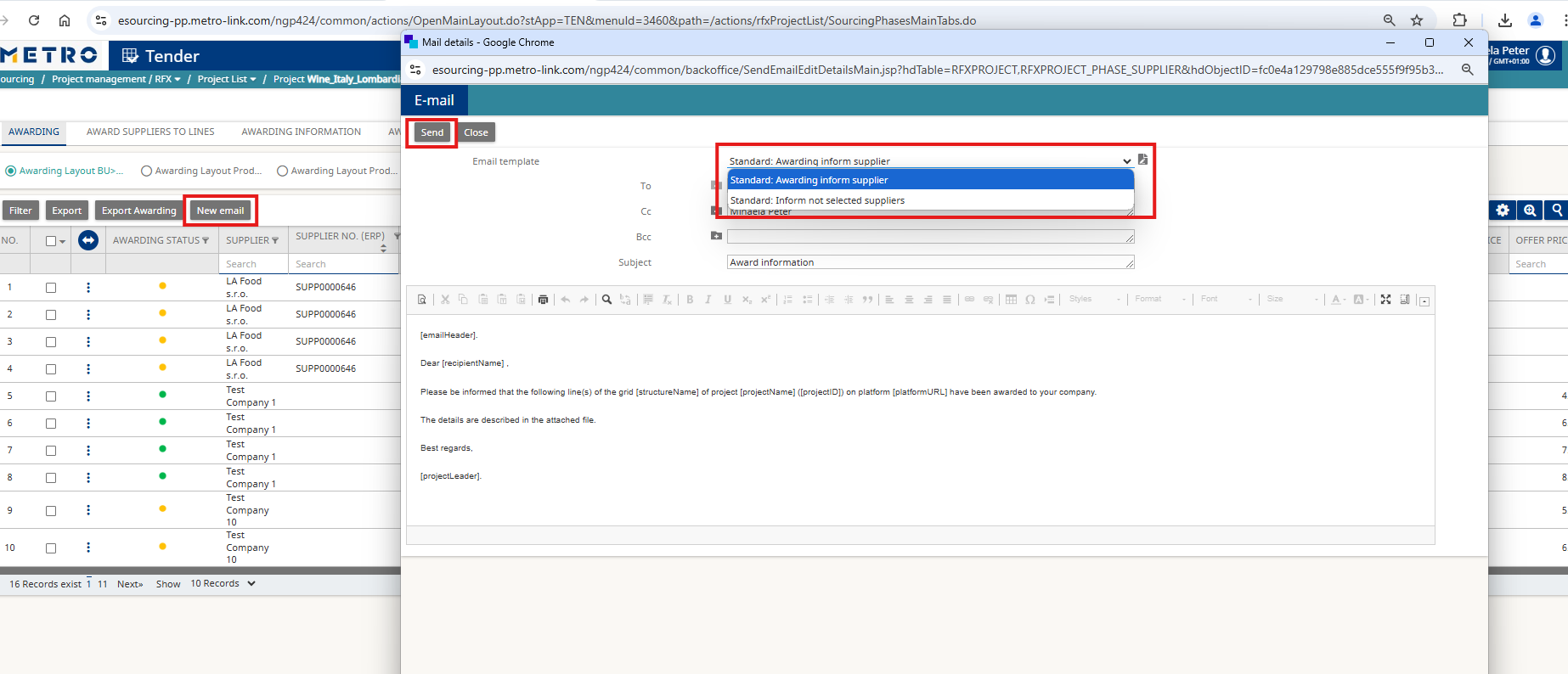
- Use the New Email option from the Awarding screen.
- Select one of the two available templates to inform:
- Awarded suppliers
- Not selected suppliers
Additional Notes
- Double-check prices and quantities before finalizing.
- Use bulk awarding for efficiency when handling large projects.
If you need further assistance do not hesitate to Contact us.